Admin Dashboard Guide
Monitor judges, manage scores, and control the public display during a live competition.
Admin Dashboard Guide
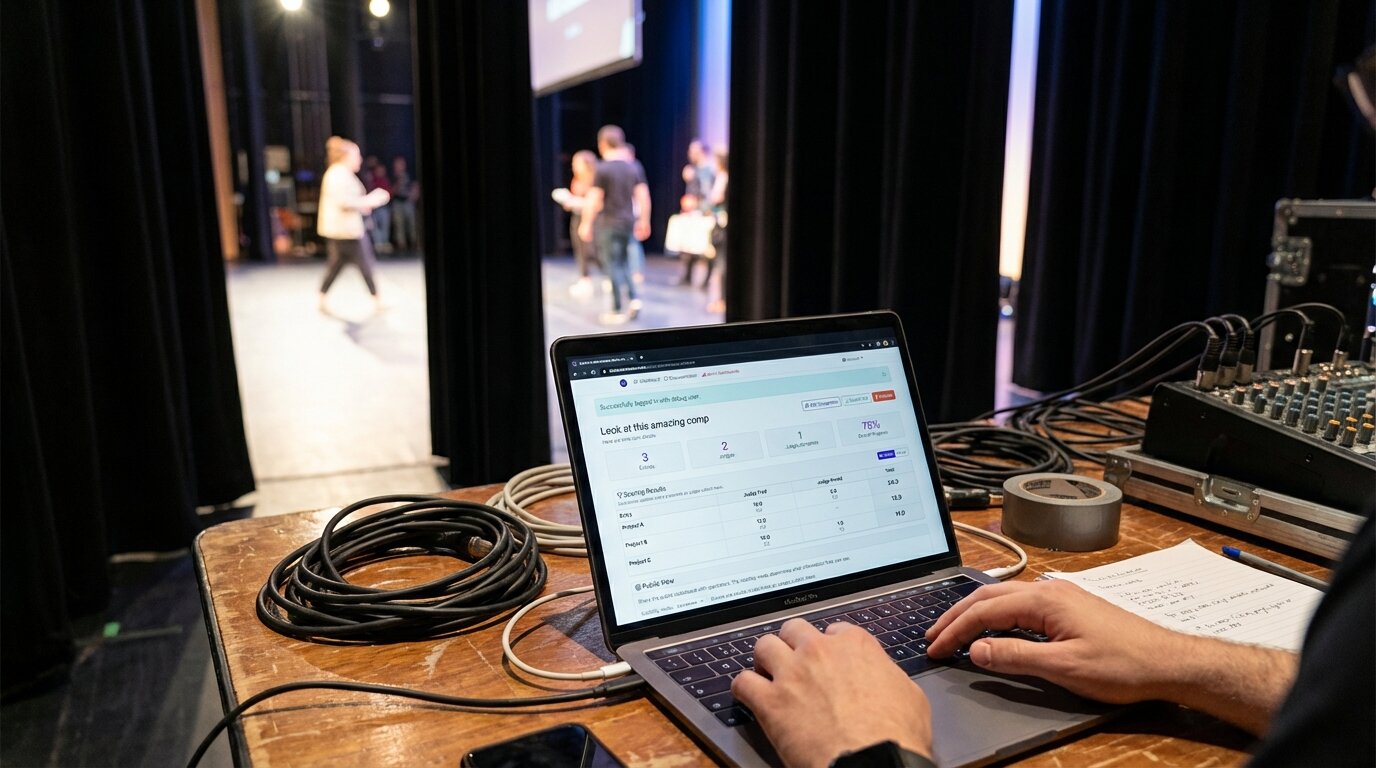
The admin dashboard is where you'll spend most of your time during a live event. It shows you what's happening, who's scoring, and what needs your attention.
Overview
At the top you'll see four stat cards: Entries, Judges, Judges Complete, and Overall Progress (a percentage that turns green as scoring finishes). Below that are three main sections: Judge Management, Scoring Results, and Public View.
Watching Your Judges
The Judge Management section shows a table with each judge's name, a progress bar, and action buttons.
The progress bar tells you how far along each judge is — blue means in progress, green means they've finished all entries.
A judge showing 0% progress ten minutes before the event ends is a problem. Call or text them directly — that's why we recommend keeping phone numbers handy.
Sharing Links
Each judge has a Share button that generates a ready-to-send message containing their unique scoring link. Copy the message and send it however works best — text, email, Slack.
If a judge lost their link, use the Share button again to get a fresh copy and send it directly.
Judge Actions
Two action buttons appear per judge:
- Reset Completion (undo icon) — appears when a judge has finished. Lets them go back and score more entries. Useful if they accidentally hit the finish button too early.
- Deactivate Judge (person-x icon) — removes a judge from scoring entirely and excludes their scores from totals. Use this for no-shows.
Once deactivated, a judge shows a "Deactivated" label in place of action buttons.
Scoring Results
The Scoring Results section updates every few seconds as judges submit scores. You can toggle between two views:
Matrix — a grid with entries as rows and judges as columns. Each cell shows the judge's total score for that entry and how many criteria they completed. Useful for spotting which judge-entry combinations are missing.
List — a ranked leaderboard. Each entry shows its rank, total score, and a breakdown by judge and criterion.
Controlling the Public Display
The Public View section has a visibility mode dropdown with three options:
- Live scores — scores are visible to the audience in real time
- Hidden — the leaderboard is visible but all scores are hidden
- Entries only — only entry names are shown, no scores
Use "Hidden" or "Entries only" during deliberation or before a big reveal. Scores still calculate on your end regardless of which mode is selected.
From this section you can also copy the public leaderboard link, preview it, embed it on a website, or customise its appearance.
Appearance
The Customise button opens the appearance modal with:
- Theme — preset themes including Default, Dark, Bold, Gaming, Contest
- Accent color — optional color override
- Layout — Bar or List view for the public leaderboard
- Font size — from 75% to 200%
- Judge Progress Indicator — show or hide the judging progress banner on the public scoreboard
Finalizing
The Finalize button permanently locks all scores. After finalizing:
- Judges cannot submit or edit scores
- No more entries, judges, or criteria can be modified
- The button is replaced by a "Finalized" badge
Use this after scoring is complete and you're confident in the results. It cannot be undone.
Editing the Competition
Click Edit Competition to go back to the editor — this is where you can add or remove entries and judges, update contestant details, or adjust criteria.
When Things Go Wrong
Judge Not Responding
Start with the admin dashboard: is their progress bar still at 0%? If so, they may not have received their link. Use the Share button to copy their link and send it again directly.
If they've accessed the link but aren't scoring, they might be confused about the interface. Send clear instructions or have someone walk them through it.
Last resort: deactivate the judge and note their scores separately.
Scores Not Calculating Right
Check that all judges have actually submitted scores for that contestant (clicking around without submitting doesn't count). Verify your calculation method — average and sum produce very different results.
Technical Issues
Real-time updates need a stable internet connection. If the leaderboard stops updating, check your wifi first.
Judges on flaky connections should refresh their browsers. If the whole system seems slow, clearing browser cache sometimes helps.
Have a backup plan. If the internet dies completely, switch to paper scoring and enter results manually after the event.
Getting Help
During your event, email [email protected]. Include your competition name and what's happening.
For pre-event setup questions, the same email works. We typically respond within a few hours.
Practice first. Create a test competition and click through everything before your real event. Five minutes of practice prevents most day-of confusion.