Getting Started with Score Judge
Set up a competition with live judging and a public leaderboard in about 15 minutes. Add judges, define scoring criteria, and share the link.
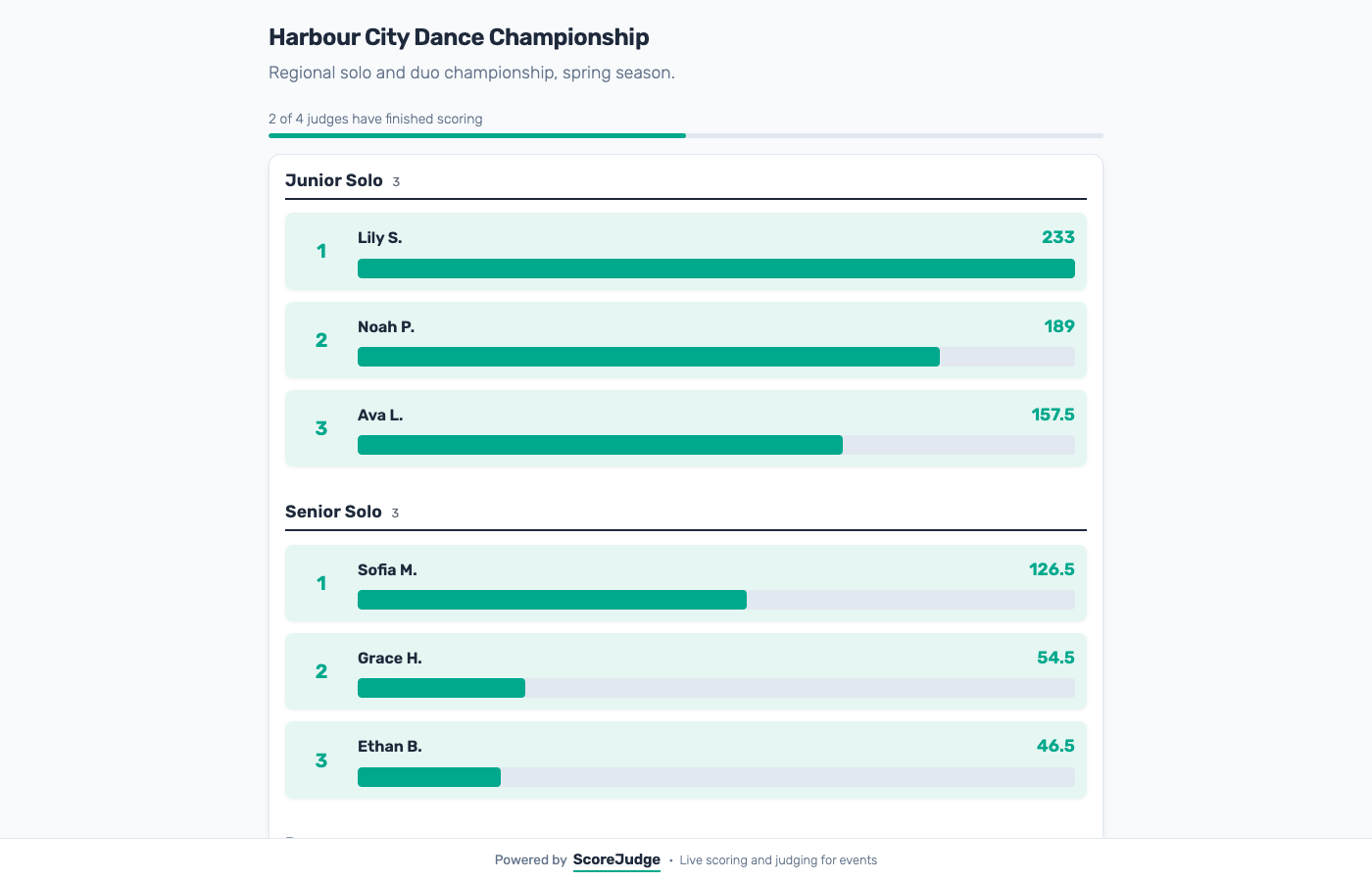
You can have a live leaderboard running in about 15 minutes. Here's how.
Step 1: Choose a Voting Mode
The first decision is who is doing the scoring. Score Judge has two top-level modes, and one of them branches further.
Panel Judging — A named panel of judges scores entries privately, each with a unique link. Best for hackathons, science fairs, pitch competitions, or any event with official judges.
Audience Voting — Anyone with a single shared link can vote anonymously. Best for talent shows, classroom polls, watch parties, or audience-choice awards. Audience voting comes in three flavours:
- Audience Scoring — voters give numeric scores against your criteria
- Audience Ranking — voters drag entries into their preferred order
- Audience Favorite — voters tap a single favorite entry, no criteria or ranking
You pick the mode when creating your competition. It can't be changed afterwards, so choose before you start. Not sure which to use? Read the Voting Modes guide or the Audience Voting Guide for a deeper walkthrough.
Step 2: Set Up Your Competition
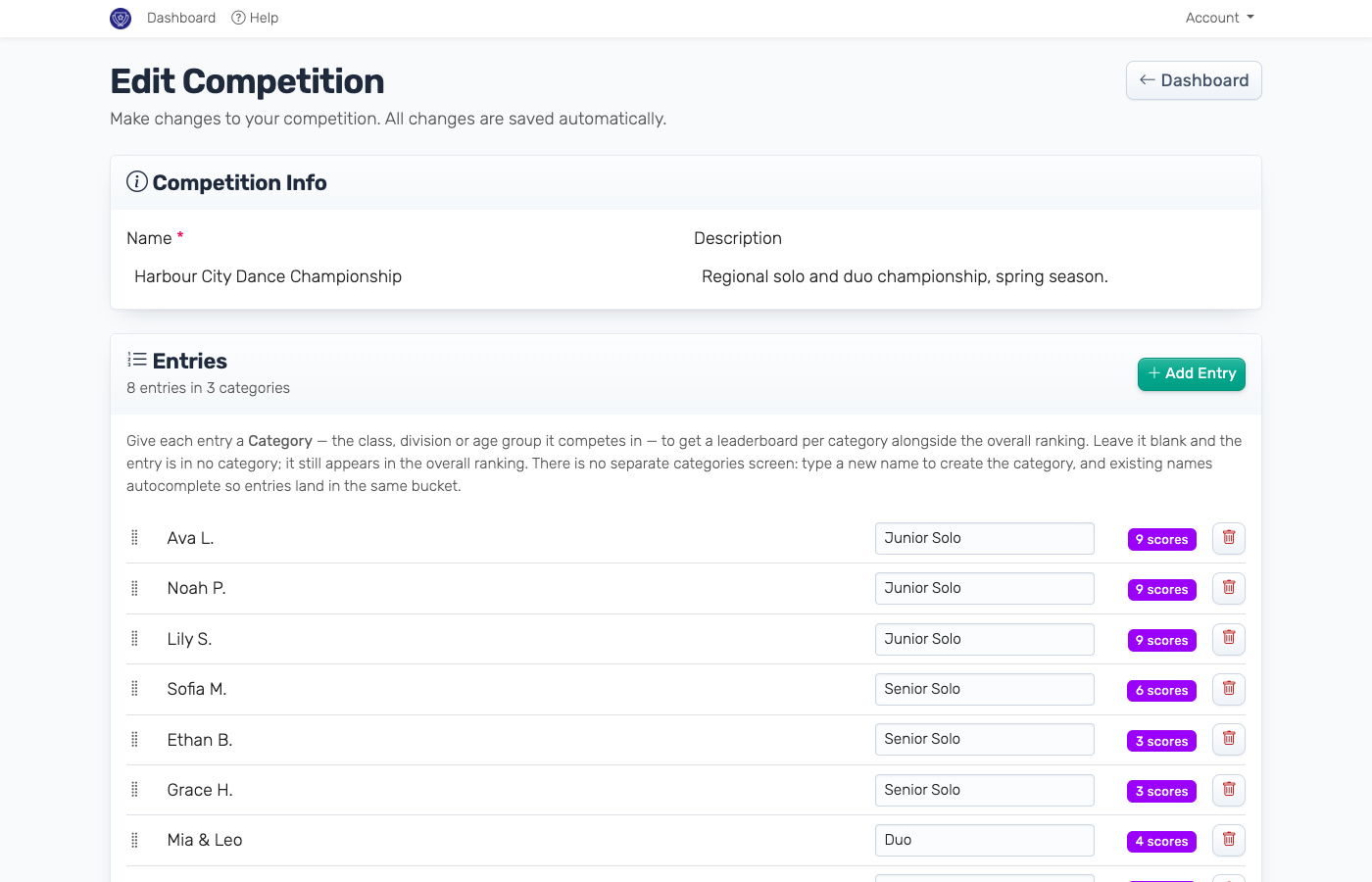
Click "New Competition" from your dashboard. You'll name your competition and add entries — the contestants, projects, or performances being judged.
Competing in classes, divisions or age groups? Click the Use categories link on the entries step to give each entry a category and get a leaderboard per category alongside the overall ranking — see Categories & Judge Assignments.
What comes next depends on your mode:
Panel Judging and Audience Scoring: Define scoring criteria — the things judges or voters will rate (for example "Innovation", "Presentation", "Feasibility"). Set the scale (1-5, 1-10, whatever fits). That's all the wizard asks: everything else — whether scores are summed or averaged, judge notes, letting voters skip entries — is in the editor's Settings, explained in Competition Settings. Scores start as Sum.
Panel Judging competitions can also enable Drop Score in Settings, which automatically excludes each entry's highest and/or lowest judge score before totaling — useful if you want to reduce the impact of any single judge's bias.
Audience Ranking and Audience Favorite: No criteria needed. Ranking voters arrange entries by preference; Favorite voters just tap the one entry they like best.
Step 3: Add Judges or Share the Voting Link
Panel Judging
Enter each judge's name. Score Judge generates a unique scoring link per judge — no login, no app. Copy each link from the dashboard and send it yourself: email, Slack, text, whatever works.
Keep a backup contact method for each judge. If someone loses their link on the day, grab a fresh one from the admin dashboard and send it directly.
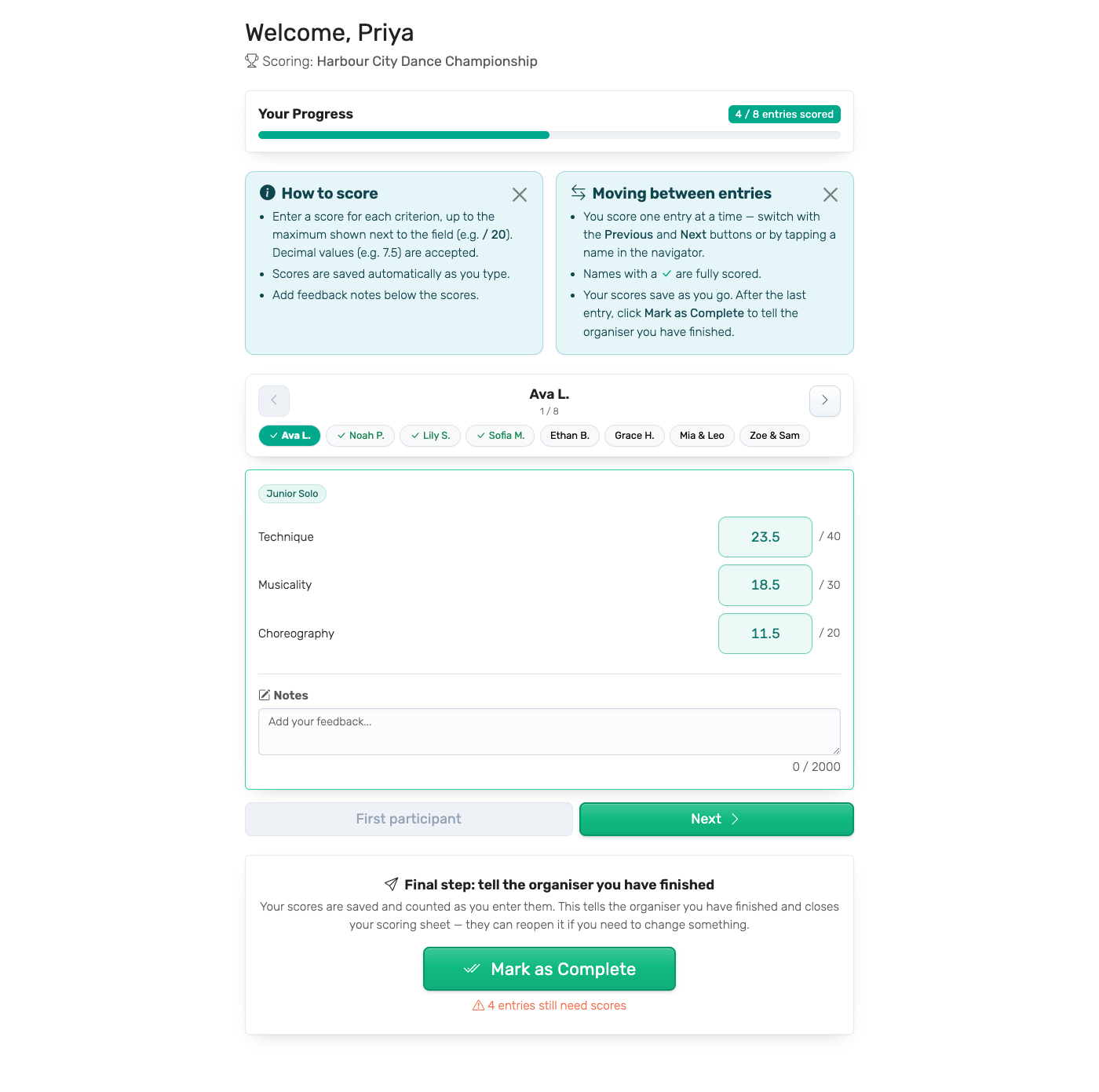
Send your judges Scoring as a Judge along with their links: it walks them through the scoring page in three minutes. The Share message on your dashboard already links to it.
Include the scoring criteria when you brief judges so they know what they're evaluating before they arrive.
Audience Voting
In audience mode the wizard skips the "Add Judges" step entirely — there are no individual judges to add. Instead, you'll get a single shared voting link plus a QR code, both visible on the admin dashboard.
Display the QR code on a screen, print it on the event programme, or paste the link into a group chat. Anyone with the link can vote once per device.
Voter limits depend on your plan — 25 on Free, 250 on Plus, unlimited on Pro. See pricing for details, or read the Audience Voting Guide for a full walkthrough.
Step 4: Test Before the Event
There is no separate test mode: scoring is open from the moment the competition exists, and every score counts in the results, including your own tests. So test deliberately and clean up afterwards.
Panel Judging: open a judge's scoring page with the eye button next to that judge on the admin dashboard, and score an entry or two as if you were the judge. Check that the public leaderboard updates, and that the interface is clear enough for your least technical judge — fix any confusion now, not during the event. Then delete the test scores: press the eraser button next to that judge. This permanently deletes all of that judge's scores, so do it before the real scoring starts.
Audience Voting: open the voting link on your phone to check what voters will see, and confirm the QR code on the admin dashboard scans cleanly. Don't submit a test vote: audience votes count straight away and can't be deleted.
Step 5: Launch
There is nothing to switch on — scoring is already open. Send your judges their links (or put the voting link and QR code in front of your audience), and share the public leaderboard link.
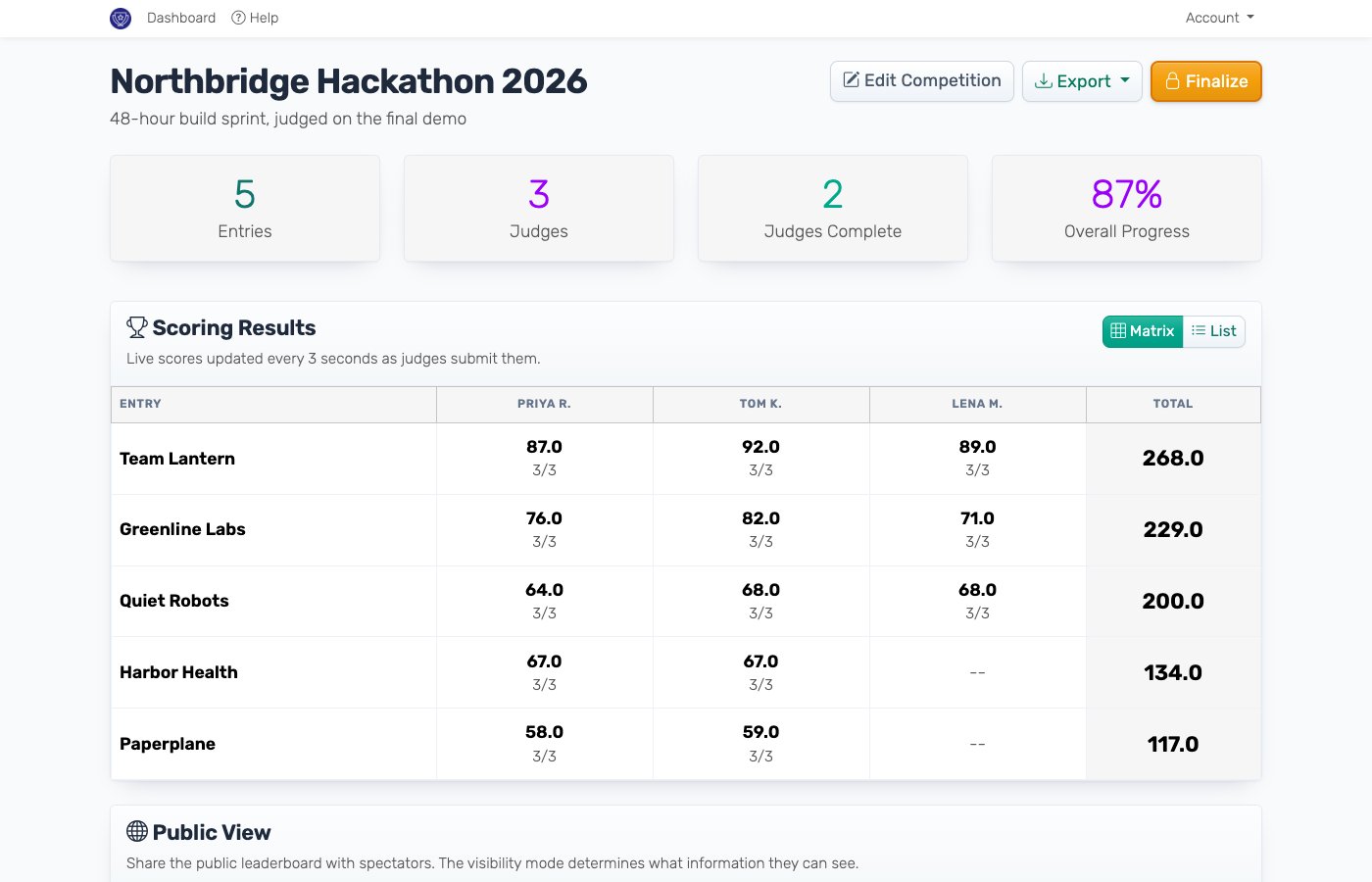
Scores appear on the leaderboard as they come in, unless you have set the visibility to Hidden or Entries only in the Public View section of the dashboard. The admin dashboard shows you scoring progress in real time.
When scoring is over, press Finalize to lock the results. Finalizing can't be undone.
Display Options
Big Screen
Open the public leaderboard on your presentation laptop. Connect to projector. Hit F11 for fullscreen. The display refreshes automatically as scores arrive. Visibility modes, the voting QR code and appearance: Public Leaderboard.
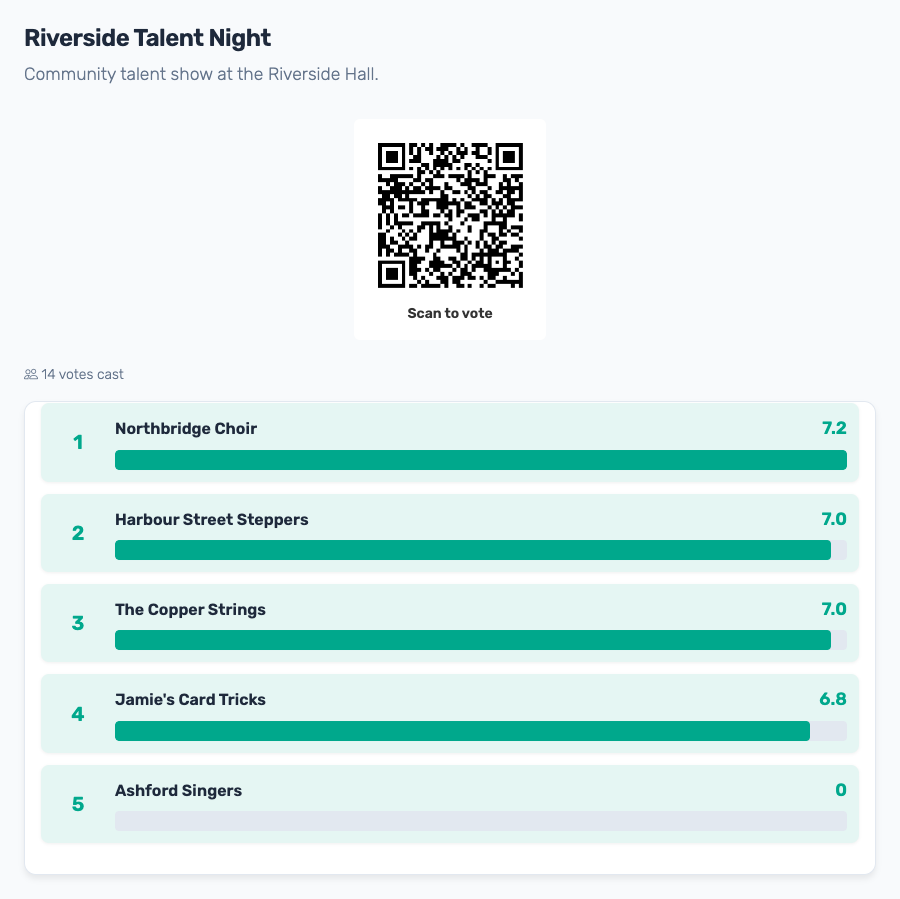
Embedded
Grab the embed code from your dashboard and paste it into your website, blog, or streaming software. Updates in real time.
Mobile
Share the leaderboard URL via QR code. Attendees can follow along on their phones without downloading anything.
What Goes Wrong (And How to Handle It)
Judge can't access their link
Check the link wasn't mangled during copy-paste. You can generate a fresh link from the admin dashboard.
Scores aren't appearing
Check the visibility in the Public View section of the dashboard: Hidden and Entries only keep scores off the public leaderboard. Scores save and count as judges enter them, even before they click "Mark as Complete", so the admin dashboard shows each judge's progress as it happens. Refresh the leaderboard page.
Display looks broken
Try fullscreen mode. Check your internet connection — real-time updates need a stable connection. Clear browser cache if the display seems stuck.
Judge is confused
Send them Scoring as a Judge: it explains the scoring page, moving between entries and marking as complete, with screenshots. Keep someone available during the event to field questions.
Next Steps
- Voting Modes — detailed breakdown of Panel Judging vs. Audience Voting
- Competition Settings — combining scores, notes, Drop Score, and what locks once scoring starts
- Scoring as a Judge — the page to send your judges
- Audience Voting Guide — full walkthrough of audience mode
- Admin Dashboard Guide — monitoring tools and advanced features
- Categories & Judge Assignments — a leaderboard per class or division, and who judges what
- Judge Notes — private per-entry feedback from judges
- Drop Score — exclude outlier judge scores (Olympic Scoring)
- Technical Requirements — make sure your setup is ready
- Contact us if you have questions