Admin Dashboard Guide
Monitor judges, manage scores, and control the public leaderboard display during a live competition. See who has scored and catch issues in real time.
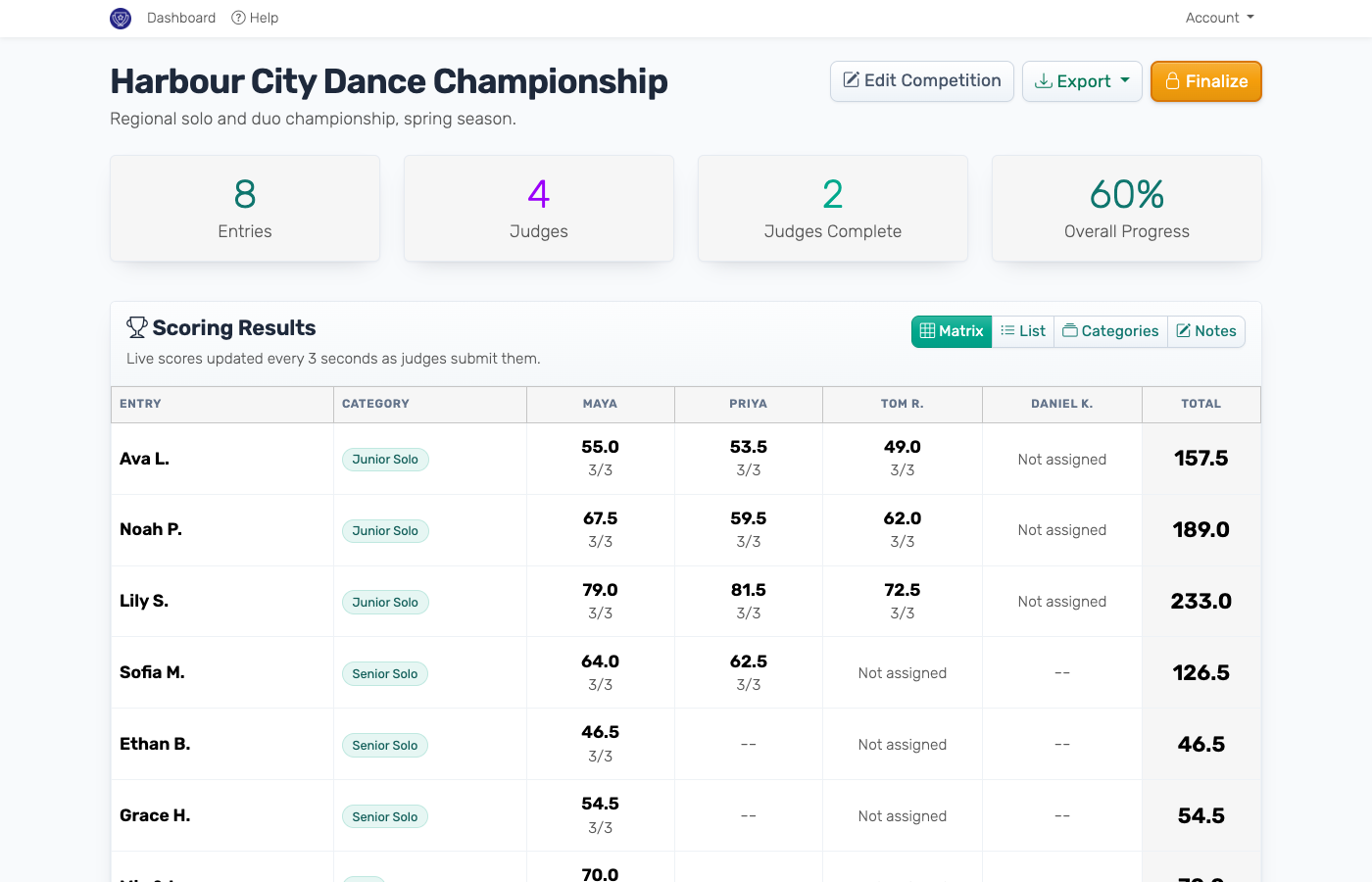
The admin dashboard is where you'll spend most of your time during a live event. It shows you what's happening, who's scoring, and what needs your attention.
Overview
The admin dashboard adapts to the judging mode you picked when creating the competition.
Panel mode shows four stat cards at the top — Entries, Judges, Judges Complete, and Overall Progress (a percentage that turns green as scoring finishes) — followed by Judge Management, Scoring Results, and Public View sections.
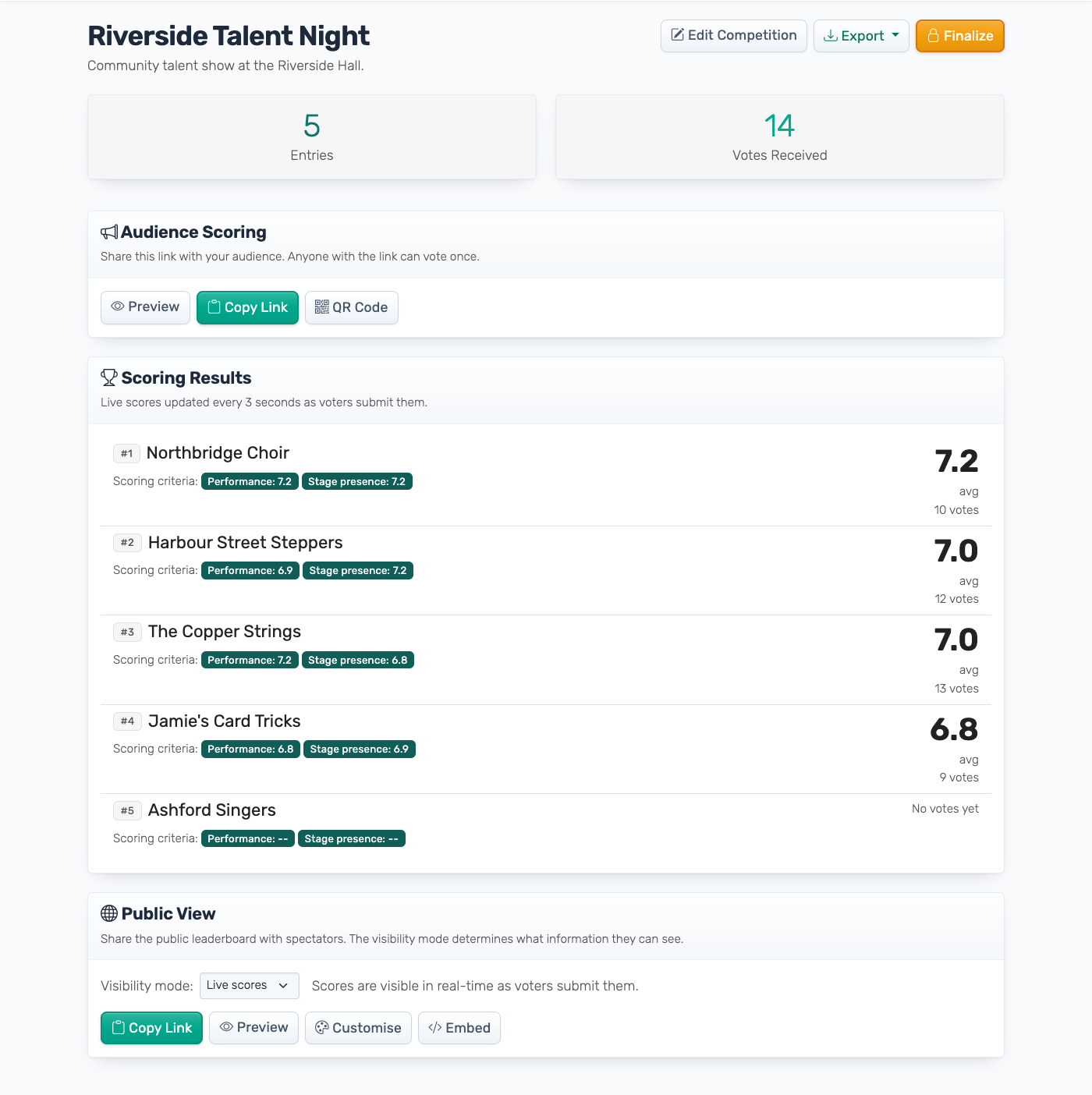
Audience mode replaces the per-judge layout with two stat cards — Entries and Votes Received (Ballots Submitted for Ranking and Favorite) — a voting link panel with a QR code, and the same Scoring Results and Public View sections.
The rest of this guide covers panel mode first, then audience mode. Most controls (Public View, appearance, the Export menu, finalizing) work the same in both.
Watching Your Judges
The Judge Management section shows a table with each judge's name, a progress bar, and action buttons.
The progress bar tells you how far along each judge is — blue means in progress, green means they've finished all entries.
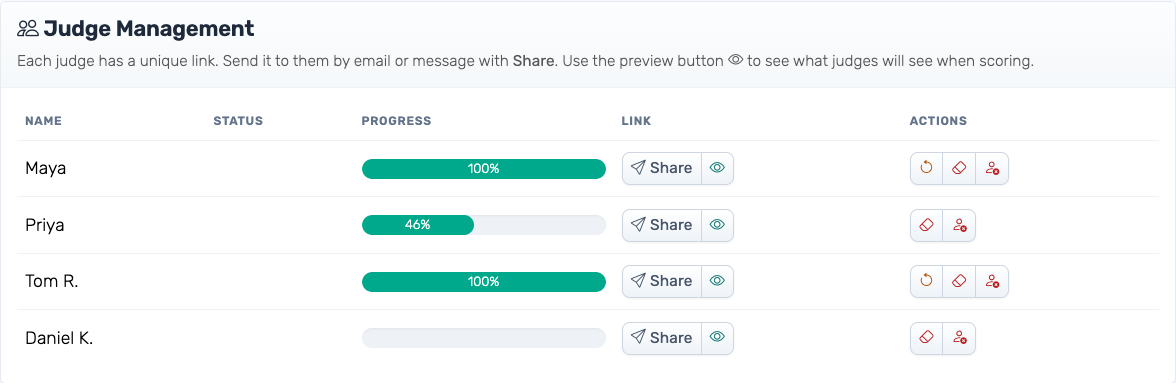
A judge showing 0% progress ten minutes before the event ends is a problem. Call or text them directly — that's why we recommend keeping phone numbers handy.
Sharing Links
Each judge has a Share button that generates a ready-to-send message containing their unique scoring link and a link to Scoring as a Judge, the guide written for judges. Copy the message and send it however works best — text, email, Slack.
If a judge lost their link, use the Share button again to get a fresh copy and send it directly.
Judge Actions
Up to three action buttons appear per judge:
- Reset Completion — appears when a judge has finished. Lets them go back and score more entries. Useful if they accidentally hit the finish button too early.
- Reset Scores — permanently deletes all of that judge's submitted scores and lets them start over from scratch. Useful for clearing out test scores or a judge who scored the wrong entries. This cannot be undone.
- Deactivate Judge — removes a judge from scoring entirely and excludes their scores from totals. Use this for no-shows.
Once deactivated, a judge shows a "Deactivated" label in place of action buttons.
Audience Mode Dashboard
When the competition is in audience mode, the per-judge layout is replaced by an audience-specific view.
Vote Counter
Votes Received (or Ballots Submitted in Ranking and Favorite) counts the people who have submitted a ballot so far. It updates every few seconds — there's no need to refresh.
How many voters a competition can take depends on your plan: 25 on Free, 250 on Plus, no cap on Pro. Once the limit is reached, the voting link shows a Voting Is Full screen to anyone who hasn't voted yet, with a link to the results.
Voting Link Panel
The voting link panel has three buttons: Preview opens the ballot as voters see it, Copy Link copies the voting link, and QR Code shows a code that opens it. Use the QR code for live events — projecting it on a screen or printing it on the event programme is far faster for voters than typing the URL.
The same panel stays accessible throughout the event so you can re-share the link mid-event if needed.
Scoring Results in Audience Mode
The Scoring Results section works the same as in panel mode, but the breakdown changes:
- Audience Scoring: each entry shows its score (points or average, depending on Combining scores) with the number of voters that scored it underneath (e.g. "142 votes"). An entry nobody has voted for yet says No votes yet instead of a score
- Audience Ranking: each entry shows its accumulated points from the Eurovision-style distribution
- Audience Favorite: each entry shows a plain vote count — one point per tap, so the total is the number of people who picked it
Audience competitions show this ranked list only. There is no Matrix view, because there are no individual judges to show per cell.
There is no per-judge action column (no "Share", no "Reset Completion", no "Deactivate Judge") because there are no individual voters to act on. If a competition is being abused, finalize it to close voting — see Finalizing below.
Scoring Results
The Scoring Results section updates every few seconds as judges submit scores. You can toggle between two views:
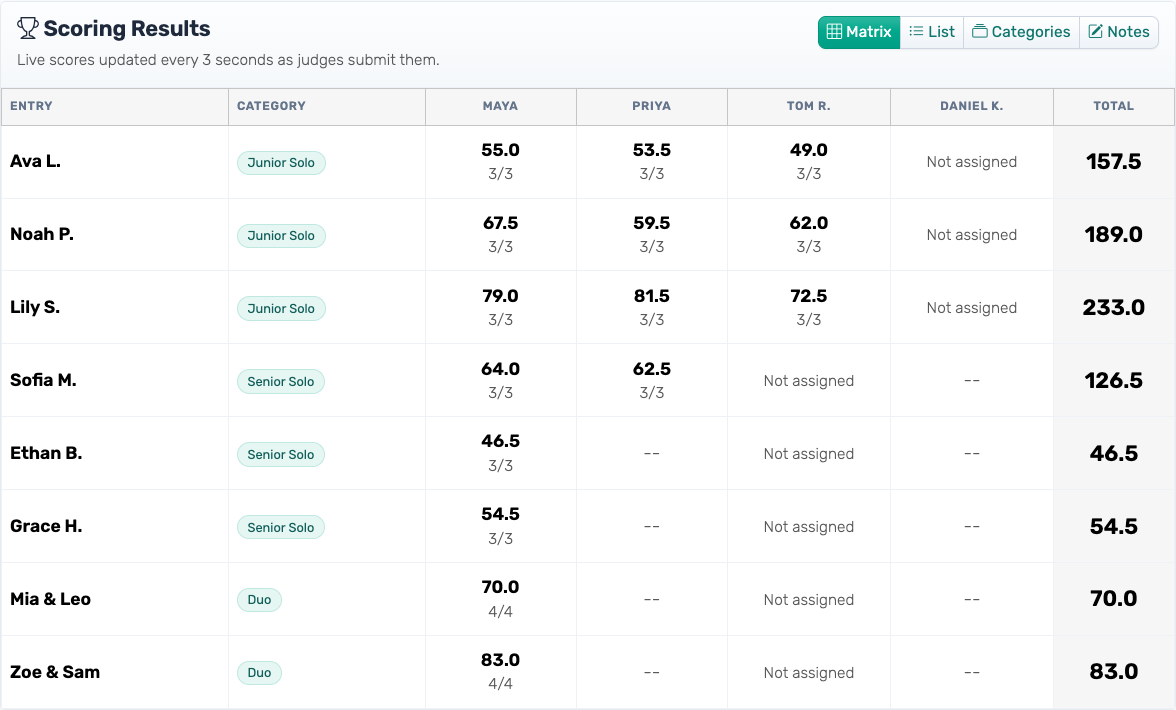
Matrix — a grid with entries as rows and judges as columns. Each cell shows the judge's total score for that entry and how many criteria they completed. Useful for spotting which judge-entry combinations are missing.
List — a ranked leaderboard. Each entry shows its rank, total score, and a breakdown by judge and criterion.
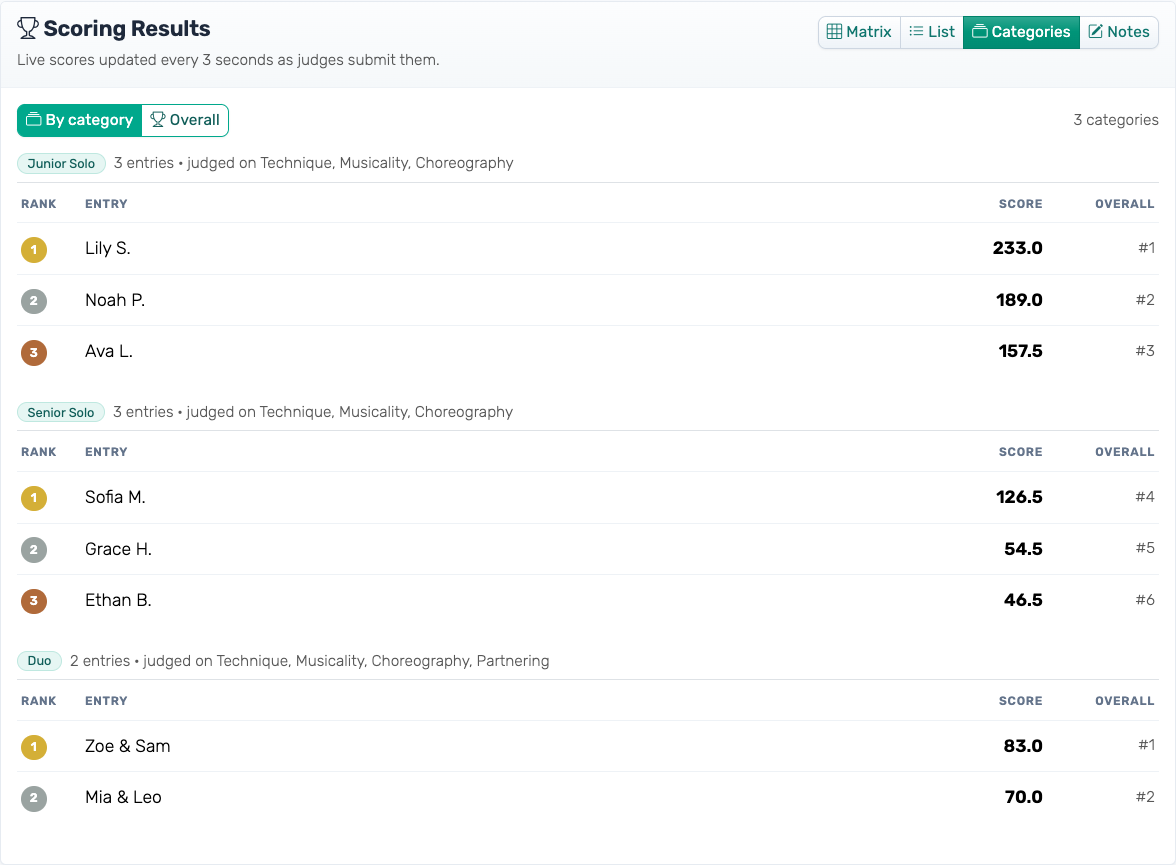
Categories
If any entry has a category, a third view appears in the toggle: Categories. It shows a ranked leaderboard per category — each with its entry count and the criteria those entries are judged on — plus an Overall tab with every entry and its category beside it. Entries on the same score share a placing in both.
This is the view to read from when announcing a section's results mid-event. Nothing needs to be marked complete or finalized first.
Matrix view also gains a Category column. Watch the cells marked Not assigned: that judge was never given the entry, which is a different thing from an assigned judge who simply hasn't scored it yet. Only the second kind is worth chasing.
Categories are a panel-mode view — audience competitions have no view toggle, though their public leaderboard and exports still split by category.
Drop Score
If you've enabled Drop Score (Olympic Scoring) in the editor's Settings, any judge score excluded from an entry's total is shown struck through with a highlight, in both Matrix and List view. Hover over an excluded score for a tooltip confirming it was dropped.
This detail is organizer-only — judges and the public leaderboard never see which specific score was excluded, only the resulting total.
Judge Notes
If you've enabled judge notes in the editor's Settings, the dashboard gives you two ways to review them.
A Notes button appears in the view toggle alongside Matrix and List. The Notes view shows all feedback grouped by entry — each judge's note displayed in a card format. This is the best way to review feedback before sharing it with competitors.
In the List view, notes also appear inline: expand any entry's judge breakdown and you'll see each judge's note quoted below their score.
Every file in the Export menu includes the notes. See the Judge Notes guide for full details on setup and usage.
Controlling the Public Display
The Public View section has a visibility mode dropdown with three options:
- Live scores — scores are visible to the audience in real time
- Hidden — the leaderboard is visible but all scores are hidden
- Entries only — only entry names are shown, no scores
Use "Hidden" or "Entries only" during deliberation or before a big reveal. Scores still calculate on your end regardless of which mode is selected. What spectators see in each mode: Public Leaderboard.
From this section you can also copy the public leaderboard link, preview it, embed it on a website, or customise its appearance.

Appearance
The Customise button opens the appearance modal with:
- Theme — preset themes including Default, Dark, Bold, Gaming, Contest
- Accent color — optional color override
- Layout — Bar or List view for the public leaderboard
- Font size — from 75% to 200%
- Judge Progress Indicator — show or hide the judging progress banner on the public scoreboard
- Voting QR Code (audience competitions) — show or hide the "Scan to vote" code on the public leaderboard
Exporting Results
The Export menu at the top of the dashboard has two kinds of file, each as CSV (for a spreadsheet) or PDF (for printing or sending):
- Results (the top CSV and PDF): one row per entry with its rank and total. With categories, it adds each entry's category and category rank. With Drop Score, it says whether trimming was applied. With judge notes on, it has a notes column per judge.
- Judges' Votes (panel competitions): one row per judge per entry, with every criterion score and that judge's note.
Exports are for you alone; nothing in them reaches judges or the public leaderboard. You can export at any time, before or after finalizing.
Finalizing
When every judge has marked their scoring as complete, a green banner on the dashboard asks whether you're ready to finalize. You can also finalize any time with the Finalize button at the top.
Finalize permanently locks all scores. After finalizing:
- Judges cannot submit or edit scores
- In audience mode, the voting link takes no more votes. In Ranking and Favorite it shows a "Voting Has Closed" screen straight away; in Audience Scoring that screen appears when someone tries to submit a ballot
- No more entries, judges, or criteria can be modified
- The button is replaced by a "Finalized" badge
Use this after scoring is complete and you're confident in the results. It cannot be undone.
In audience mode, finalizing is the only way to definitively stop voting before the plan voter limit is reached — handy if you're running an event with a fixed end time and want to lock in the result the moment voting closes.
Editing the Competition
Click Edit Competition to go back to the editor — this is where you can add or remove entries and judges, update contestant details, adjust scoring criteria, set up categories and judge assignments, and change the competition settings: how scores are combined, judge notes, Drop Score and more.
When Things Go Wrong
Judge Not Responding
Start with the admin dashboard: is their progress bar still at 0%? If so, they may not have received their link. Use the Share button to copy their link and send it again directly.
If they've accessed the link but aren't scoring, they might be confused about the interface. Send them Scoring as a Judge, or have someone walk them through it.
Last resort: deactivate the judge and note their scores separately.
Scores Not Calculating Right
Check that all judges have actually submitted scores for that contestant (clicking around without submitting doesn't count). Check how scores are combined in the editor's Settings — Average and Sum produce very different results. If Drop Score is enabled, remember it excludes the highest and/or lowest judge score from the total — check Matrix or List view for which score was struck through before assuming something's wrong.
Technical Issues
Real-time updates need a stable internet connection. If the leaderboard stops updating, check your wifi first.
Judges on flaky connections should keep their scoring page open rather than reload it: a reload loses scores that haven't saved yet. Once they're back online, any score outlined in red needs entering again. If the whole system seems slow, clearing browser cache sometimes helps.
Have a backup plan. If the internet dies completely, switch to paper scoring and enter results manually after the event.
Getting Help
During your event, email [email protected]. Include your competition name and what's happening.
For pre-event setup questions, the same email works. We typically respond within a few hours.
Practice first. Create a test competition and click through everything before your real event. Five minutes of practice prevents most day-of confusion.