Audience Voting Guide
Run a competition where the whole audience votes from their phones. Share one link, anyone can score entries, and results update live on the leaderboard.

Audience voting lets anyone in the room — or anywhere with the link — score the entries in your competition. There are no judge accounts, no logins, and no app to install. You share one link and watch the leaderboard fill up in real time.
This guide walks through when to use audience voting, how to set it up, how to share the voting link (URL or QR code), and what to expect from the admin dashboard during a live event.
Audience Voting vs Panel Judging
Score Judge has two top-level approaches to scoring. The choice is permanent for a given competition — you pick it on Step 1 of the setup wizard.
| Panel Judging | Audience Voting | |
|---|---|---|
| Who scores | A small group of named judges | Anyone with the link |
| Access | One unique link per judge | One shared link for everyone |
| Identity | Judges are named on the dashboard | Anonymous |
| Submitting | Saves automatically as judges go | Score everything, then submit once |
| Changing votes | Judges can revisit and edit | Locked after submit |
| Duplicate prevention | One link = one judge | One ballot per device, checked two ways |
| Best for | Hackathons, science fairs, pitch comps, formal awards | Talent shows, classroom polls, watch parties, "people's choice" |
If you want strict accountability and the ability to identify who gave which score, use Panel Judging. If you want broad participation with minimal friction, use audience voting.
You can also run both in parallel by creating two competitions for the same event — one panel and one audience — and award separate "judges' choice" and "people's choice" prizes.
The Three Audience Modes
Inside audience voting, Score Judge offers three flavours. All three share the same single-link, anonymous structure but collect input differently.
Audience Scoring — Voters score every entry on numeric criteria (e.g. "Creativity 1–10", "Presentation 1–10"). Best when you want quantitative feedback against multiple dimensions.
Audience Ranking — Voters drag the entries into their preferred order. Points are assigned automatically using a Eurovision-style distribution (12 to the top, 10 to the second, and so on). Best for preference polls and watch parties.
Audience Favorite — Voters tap the single entry they like best and submit. No criteria, no ranking the rest of the field — every vote is worth one point, so the leaderboard is a plain tally of favorites. Best for people's-choice awards and popularity polls.
The setup is almost identical. The mode you choose at competition creation determines which voting interface the audience sees. See the Voting Modes guide for a full breakdown.
One Ballot per Device
Every audience ballot is tied to the device that cast it, and ScoreJudge checks that two ways:
- The browser. A device fingerprint stored in the voter's browser stops the same browser from voting twice.
- The phone itself. Phones often have an internet address (IP address) of their own, especially on mobile data. When a phone does, ScoreJudge recognises it, so opening a private window, clearing browser data or switching to another browser on the same phone doesn't get a second vote.
A voter who comes back to the link sees the "You've already voted" screen instead of a fresh ballot. This works in all three audience modes, and nobody has to sign up or log in.
For the phone check, ScoreJudge keeps a scrambled code rather than the address. The code can't be turned back into the address and is different in every competition, so it can't be used to follow a voter from one competition to the next.
Setting Up an Audience Competition
In audience mode the setup wizard has four steps: Details, Entries, Criteria, Review. The "Add Judges" step you'd see in panel mode is skipped — there are no individual judges to add.
Step 1: Competition Details
Click New Competition from your dashboard. The first step asks how you want scoring to work and lets you name the competition.
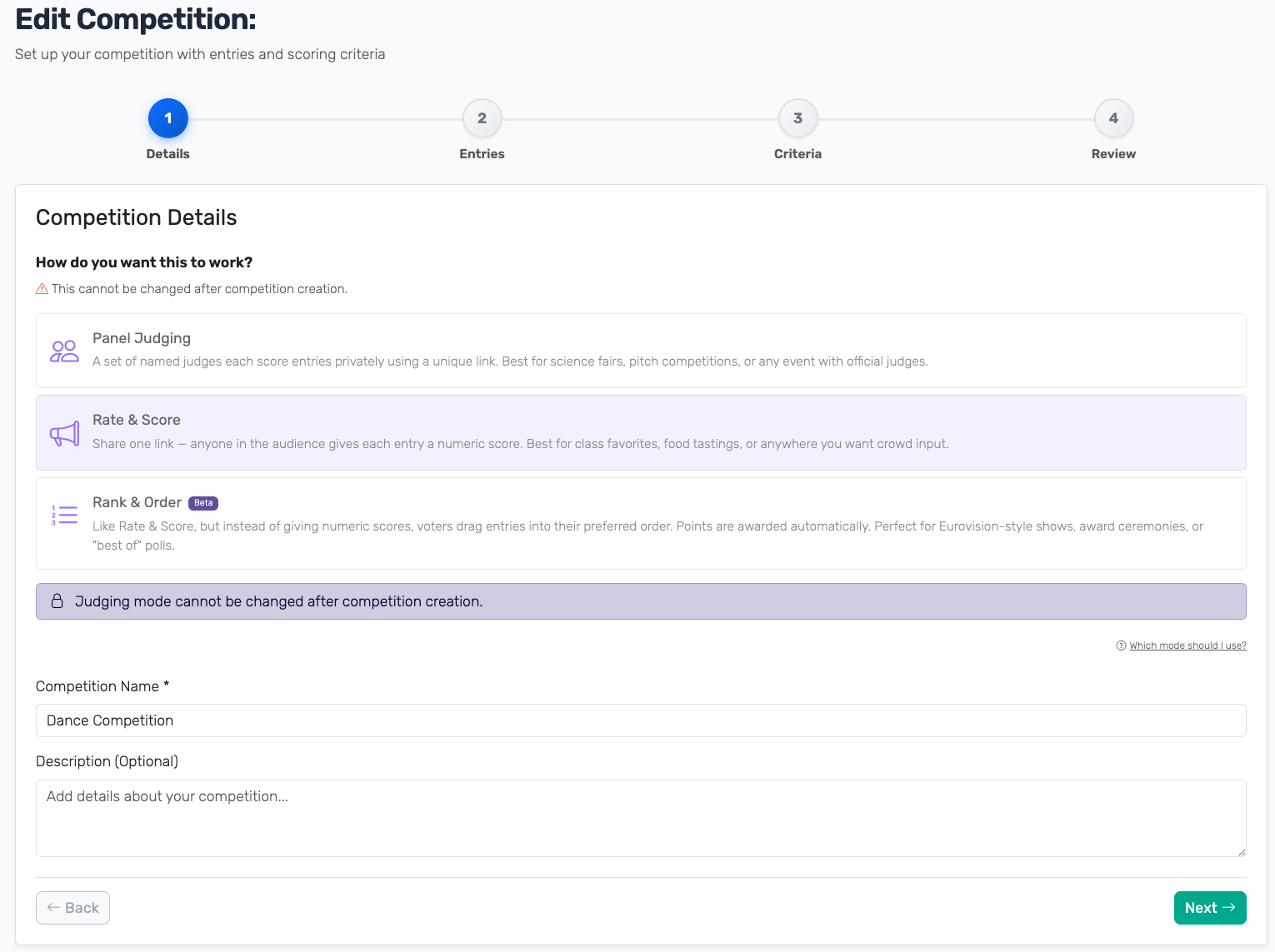
You'll see four mode cards, grouped by who votes. The three audience-voting modes are:
- Audience Scoring — voters give numeric scores against your criteria
- Audience Ranking — voters drag entries into their preferred order (Beta)
- Audience Favorite — voters tap a single favorite entry, no criteria or ranking (Beta)
Pick one, give your competition a name, and optionally add a description. The remaining card (Panel Judging) is the alternative if you want named judges instead.
Heads up: the mode is locked once the competition is created. If you change your mind later, you'll need to start a new competition.
Step 2: Add Entries
Add the contestants, projects, songs, dishes — whatever is being judged. Voters will see this list on their phones, so use clear names and (optionally) short descriptions to remove ambiguity.
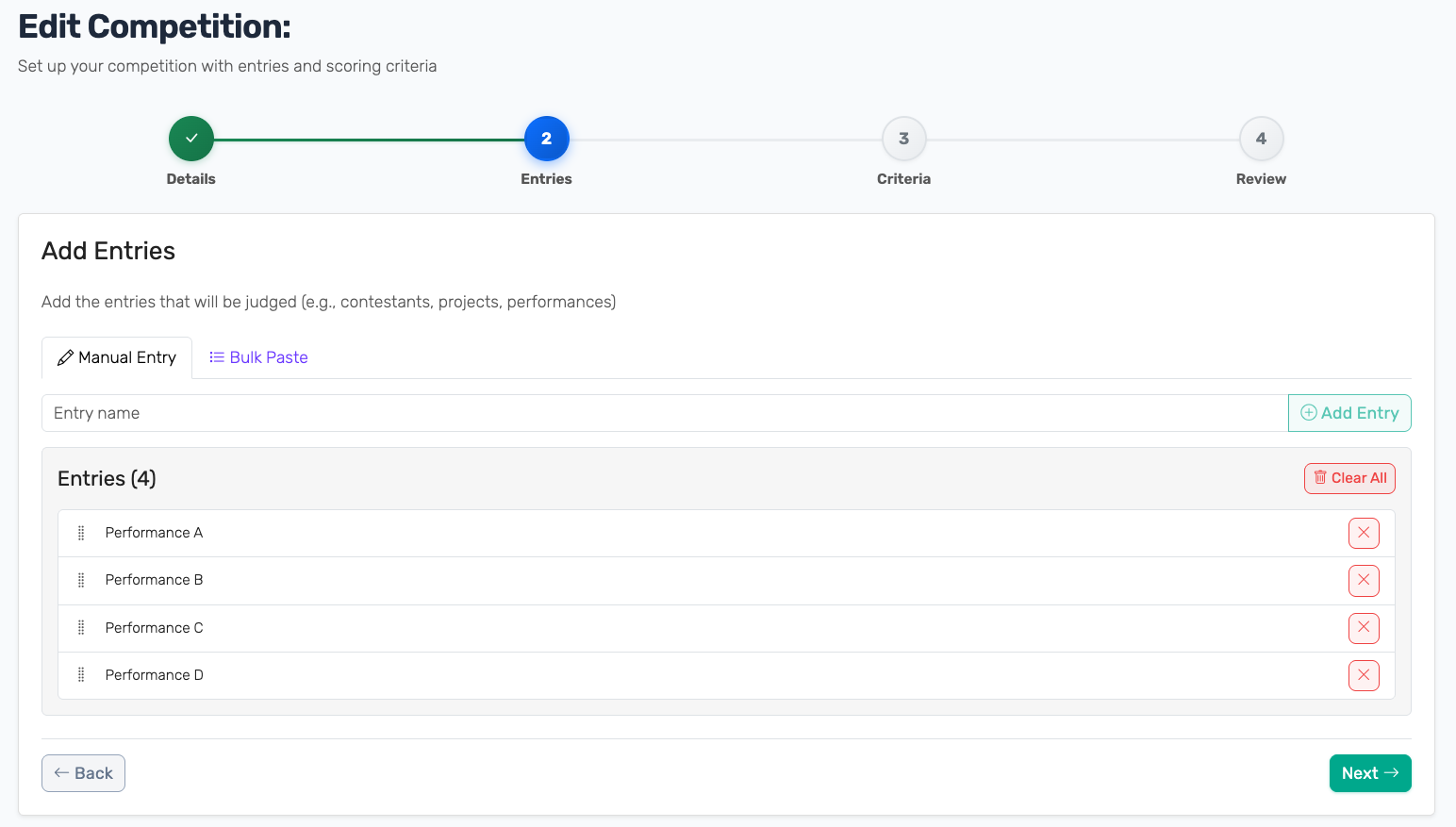
For long lists, switch to the Bulk Paste tab to drop in multiple names at once.
Step 3: Define Criteria
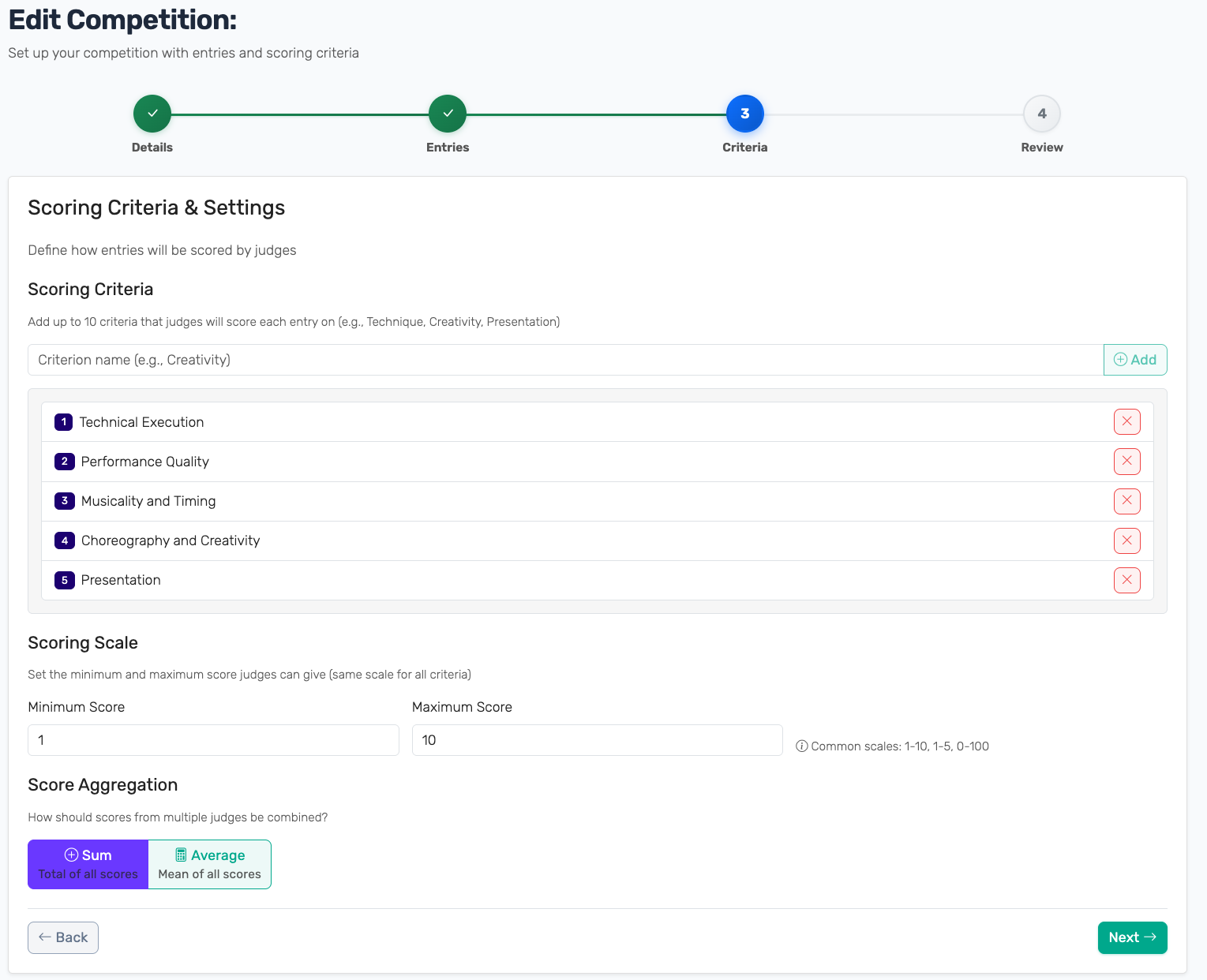
For Audience Scoring, define what voters are rating. Common patterns:
- A single criterion ("Overall") if you want a simple thumbs-up scale
- Two to four criteria for more nuanced feedback ("Creativity", "Execution", "Presentation")
- A scale that fits the audience: 1–5 is friendlier on phones, 1–10 gives more granularity
Pick a scoring scale (the same min/max applies to all criteria) and a score aggregation (Sum or Average across all criteria and voters). Audience Ranking and Audience Favorite skip this step — voters just rank or tap entries, no criteria involved.
Step 4: Review and Launch
Confirm everything looks right and hit Launch Competition. The Review step shows the mode you picked, all entries, all criteria, and the scale/aggregation choice in one screen.
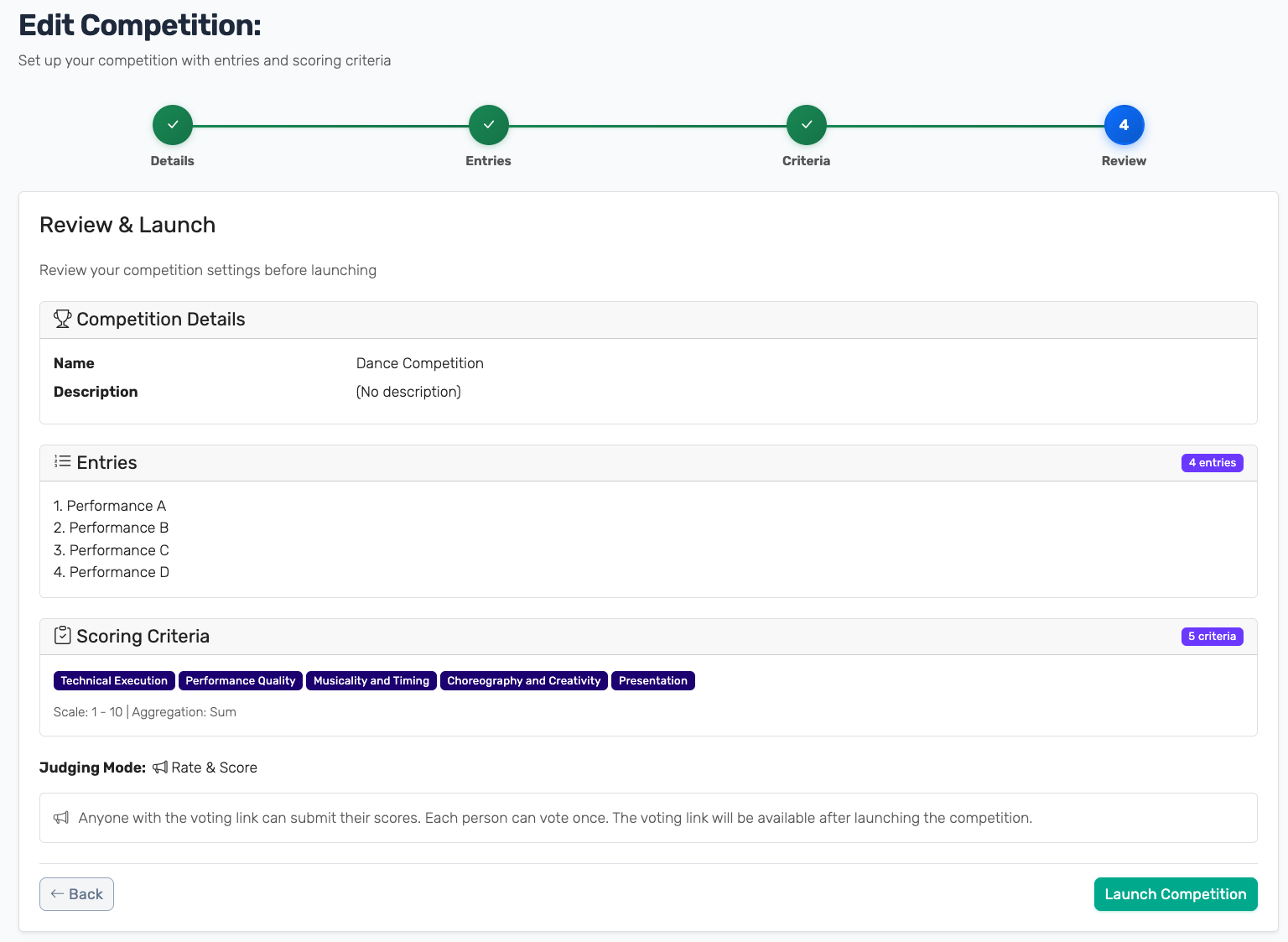
Once launched, you'll land on the admin dashboard with the voting link ready to share.
Sharing the Voting Link
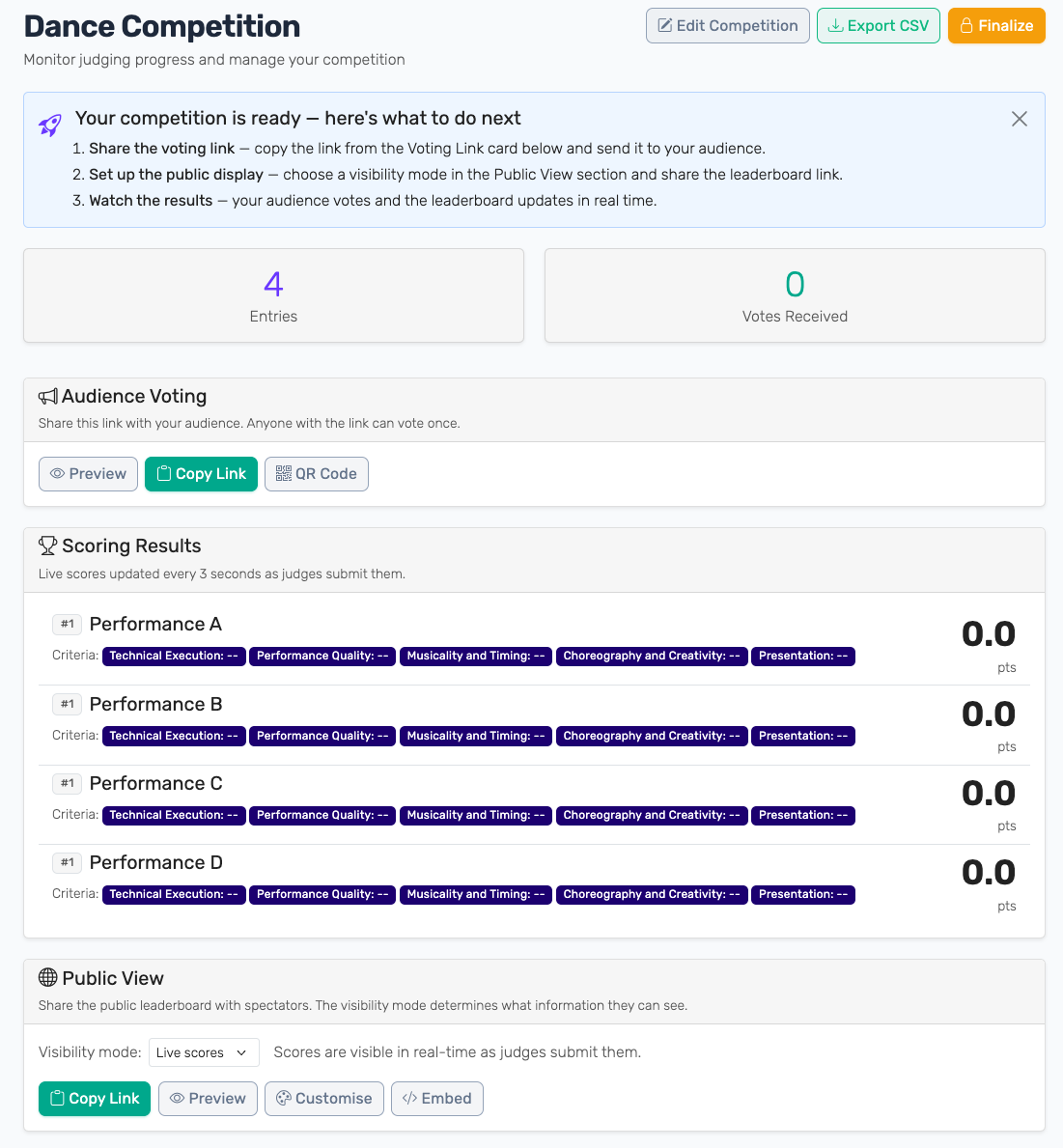
Audience voting uses a single shared URL. The admin dashboard puts it front and centre, with three sharing actions: Copy Link, QR Code, and Preview.
Copy the link
Click Copy Link to grab the voting URL. Paste it into a group chat, email, Slack channel, or anywhere you want voters to find it.
QR code
Click QR Code to get a printable QR code. This is the fastest path for a live event:
- Project the QR code on a screen between segments
- Print it on the event programme or table cards
- Add it to a slide for hosts to point at when introducing voting
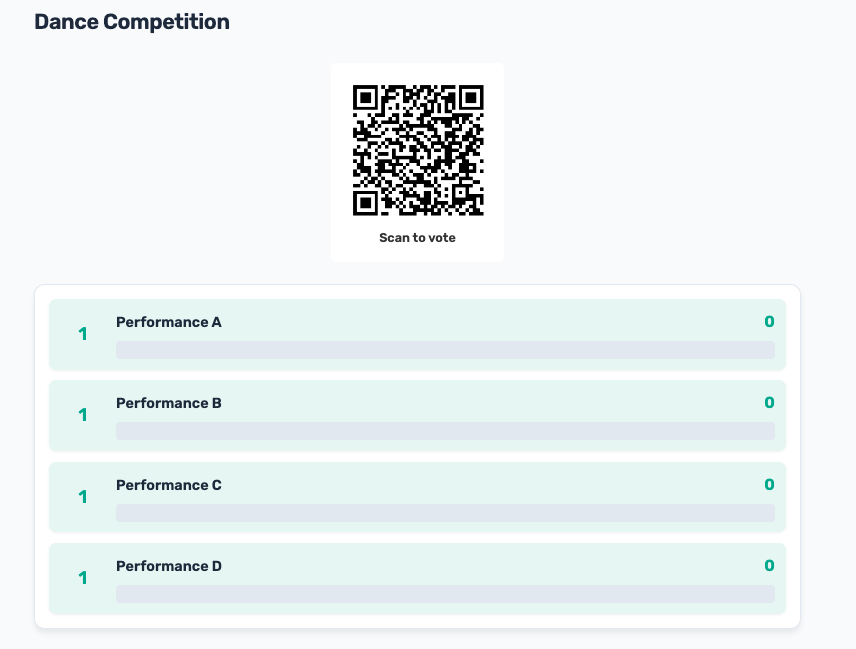
Phones recognise QR codes natively — voters scan, tap the link, and start voting in seconds. The public leaderboard already includes a "Scan to vote" QR code at the top, so you can simply project the leaderboard URL on a big screen and the audience knows exactly what to do:
Display the link directly
For events without a screen, a short URL written on a whiteboard or chalkboard works fine too. The shorter the better — voters have to type it on their phones.
What voters see
When someone scans the QR code (or opens the link), they get a mobile-optimised scoring screen: each entry has a "Tap to score" button per criterion, and a "Submit All" button appears once everything is filled in.
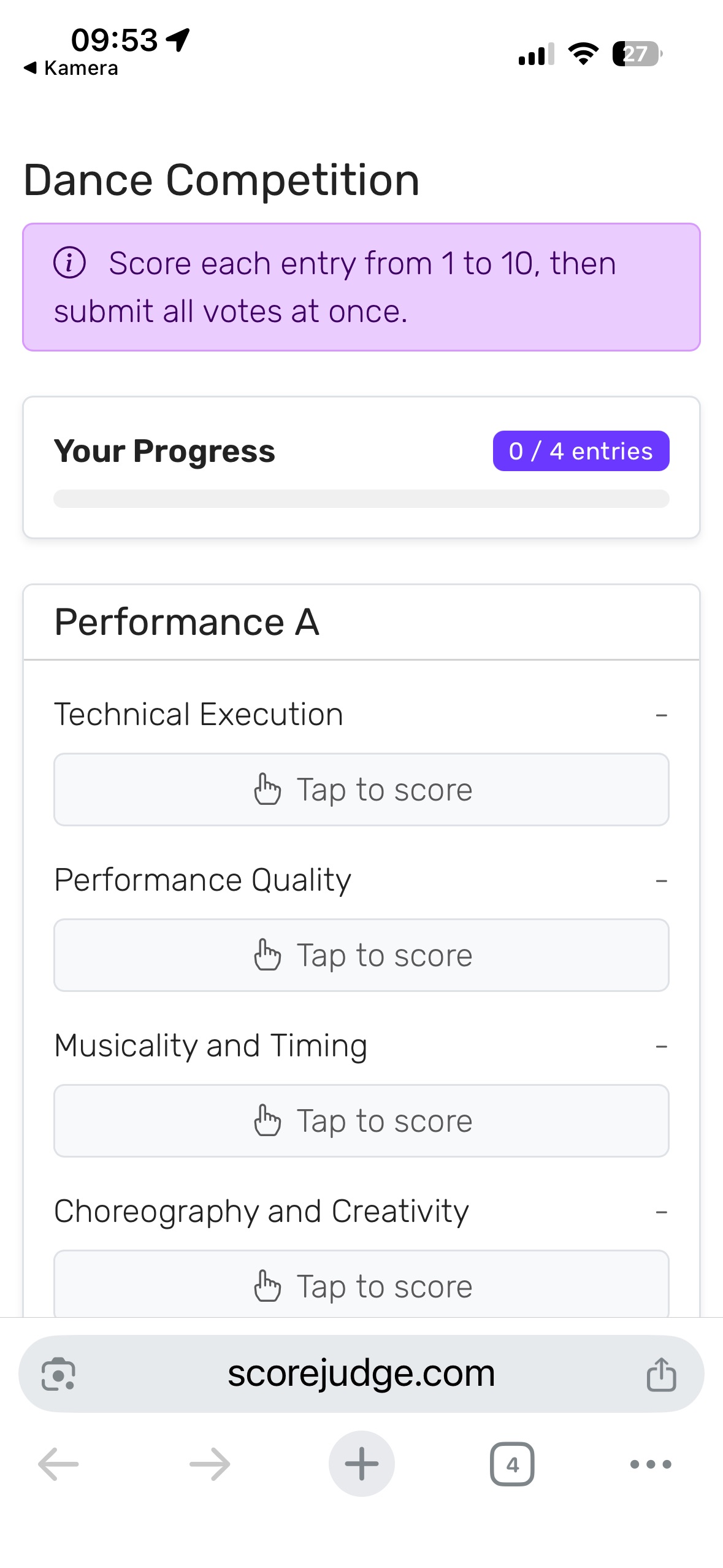
The progress indicator at the top tells voters how many entries they have left, which keeps drop-off low on competitions with many entries.
Monitoring Votes During the Event
The admin dashboard switches its layout when you're in audience mode. Instead of per-judge progress bars, you'll see a single vote count card and a voting link panel.
Vote counter
The big number shows how many people have submitted their full ballot so far. Below it you'll see a progress indicator relative to your plan limit (for example "12 / 25 votes" on the free plan, "87 / 250" on Plus). On Pro the counter just shows the total — there's no cap.
The number updates every few seconds as new submissions arrive. There's no need to refresh.
Voting link panel
The voting link stays accessible from the dashboard so you can re-share it mid-event. The same QR code button is there if you need a fresh poster.
Live results
The Scoring Results section works the same way it does in panel mode, with one change: instead of a per-judge breakdown, each entry shows its total score and total vote count.
For Audience Scoring competitions, that looks like: Entry 1 — 1,164 points (142 votes).
For Audience Ranking, you'll see the points each entry accumulated from the Eurovision-style distribution.
You can toggle between Matrix and List views. List view is the most useful during a live event — it ranks entries top to bottom in real time.
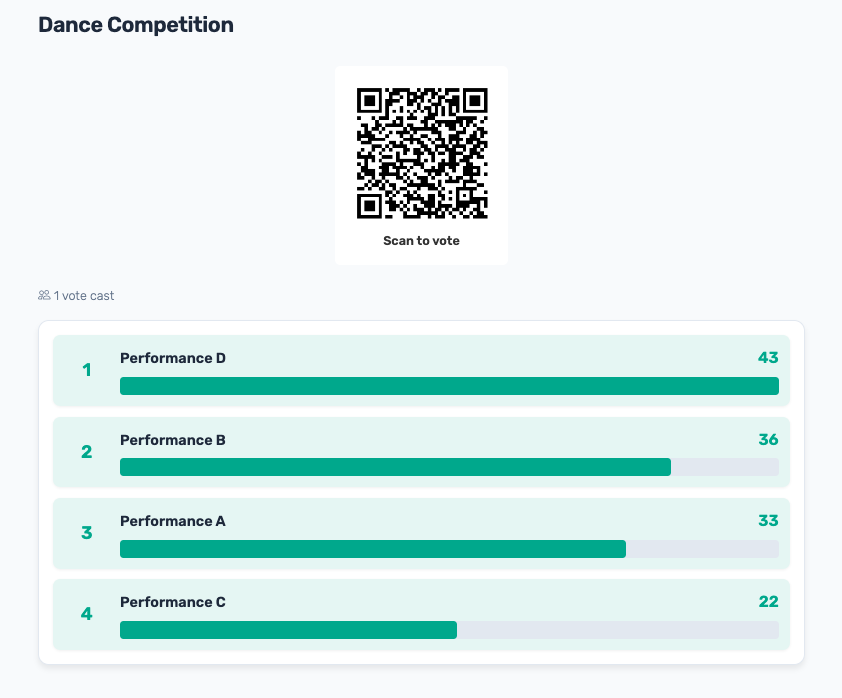
The public leaderboard updates in the same rhythm. Once votes start coming in, ranks shuffle and the bar lengths adjust:
Public View controls
The Public View section works the same in both modes. Use the visibility dropdown to:
- Live scores — audience can see results updating
- Hidden — leaderboard layout is visible, but scores are masked (good for a build-up to a reveal)
- Entries only — only the names of entries are shown
Hidden mode is especially useful in audience voting because seeing a runaway leader can sometimes bias remaining voters.
When Voting Should Stop
Unlike panel judging, audience voters often keep arriving throughout the event. There are a few ways to control when voting ends.
Hit the plan limit
Voting automatically stops once the per-competition voter cap is reached. The voting link starts showing a "Voting is full" message to anyone who hasn't already submitted.
| Plan | Voters per competition |
|---|---|
| Free | 25 |
| Plus | 250 |
| Pro | Unlimited |
If you're approaching the limit and need more, upgrade your plan — the increase applies to the active competition immediately.
Finalize from the dashboard
The Finalize button on the admin dashboard locks the competition. After finalizing:
- The voting link shows a "Voting is closed" message
- The leaderboard is permanent (you can still display it)
- No more votes can be submitted, by anyone
Finalize once you're confident the results are complete. It cannot be undone.
Just stop sharing
If you'd rather leave the link technically open (for example to keep accepting late votes from people who weren't in the room), simply stop promoting it. The leaderboard will continue to update if anyone finds the link.
Interpreting Results
Audience Scoring results
The leaderboard shows each entry's summed total of all criterion scores from all voters, divided per your aggregation choice (sum or average). A high total can mean either lots of high scores or just lots of voters — which is why the vote count is shown beside the total.
For competitions where you want fairness across entries that arrived at different times, prefer average as the aggregation. For competitions where late entries shouldn't be penalised by missing earlier voters, sum rewards consistent participation.
Audience Ranking results
Each voter's ranking is converted into points using the Eurovision-style distribution (12 for first, 10 for second, 8, 7, 6, …). The leaderboard shows each entry's total points across all submitted ballots.
Audience Favorite results
Every tap is worth exactly one point, so the leaderboard is a plain vote tally — the entry with the most taps leads. There's no scale or aggregation choice to worry about.
Exporting the data
Click Export CSV from the dashboard for a row-per-vote export. Use this for:
- Audit trails (which fingerprint voted at which timestamp)
- Computing custom metrics (median, mode, per-criterion averages)
- Sharing with collaborators who want the raw data
Good to Know: Limitations of Anonymous Voting
Audience voting is built for fun, low-stakes events: talent shows, hackathons, classroom polls, team awards, watch parties. The design optimises for frictionless participation — no accounts, no app, no sign-up — which means duplicate prevention is best-effort.
Specifically:
- Where many phones share one internet address, as on a lot of venue Wi-Fi, only the browser check from One Ballot per Device applies. There, a private window or cleared browser data can still get a second vote
- A determined voter can switch to another network or another device
- Expect occasional double-voting in groups that are determined to game the system
This is an intentional tradeoff. The moment you require accounts or email verification, audience participation drops sharply.
If your competition needs strict vote integrity — for example, prize money, official rankings, or anything an aggrieved participant might dispute — use Panel Judging instead. Each judge gets a unique private link, and you control exactly who is on the panel.
Frequently Asked Questions
Can voters change their votes after submitting?
No. Once a voter taps Submit, their ballot is locked.
This is intentional — audience voting is meant to be a one-shot poll, not a discussion. Allowing edits would let voters react to the live leaderboard and shift the result toward whoever happens to be leading at the moment they re-submit.
If you want a mode where individuals can revisit and adjust their scores, use Panel Judging instead. Panel judges keep their unique link and can update scores at any point before the competition is finalized.
How do you prevent duplicate votes?
ScoreJudge checks every ballot two ways. A device fingerprint stored in the voter's browser stops the same browser from voting twice. And when a phone has its own internet address, which is common on mobile data, ScoreJudge recognises the phone itself: a private window, cleared browser data or a second browser on the same phone doesn't get a second vote. Once a device has submitted a ballot, the voting link shows a "You've already voted" screen instead of the voting interface.
This is still best effort, not a hard guarantee. Where many phones share one address, as on a lot of venue Wi-Fi, only the browser check applies, and a determined voter can switch to another network or device. See One Ballot per Device and Limitations of Anonymous Voting above for the details and the reasoning behind the trade-off.
How many people can vote at once?
The voting endpoint handles burst traffic well — a few hundred people scanning the QR code at the same time is fine. There's no per-second cap that the audience will run into during a normal event.
The hard limit is the per-competition voter cap set by your plan: 25 on Free, 250 on Plus, unlimited on Pro. See pricing for details.
Is voting anonymous?
Yes. Audience voters are not identified by name, email, or account.
What is stored:
- A device fingerprint generated by the browser, used solely to keep the same device from voting twice
- A scrambled code made from the phone's IP address, used solely to stop the same phone voting twice. It can't be turned back into the address and is different in every competition
- The IP address of the submission, used for abuse detection only and not displayed on the admin dashboard
- A random per-submission ID that groups a voter's individual scores together for aggregation
What is not stored:
- No name or email
- No account linkage (audience voters are not Score Judge users)
- No cross-competition tracking
The competition organizer sees aggregate results and per-vote scores, but cannot identify which person submitted which ballot.
Can I run audience voting and panel judges together?
Not in the same competition — judging mode is set on Step 1 and locked once the competition is created.
You can, however, run two competitions in parallel for the same event: one in panel mode for the official judges and one in audience mode for the crowd. Award separate "judges' choice" and "people's choice" prizes.
Setup is fast — duplicate the entry list across both competitions and share the audience voting link with the room while panel judges use their unique links.
Can voters submit a partial ballot?
The submit button only activates once a voter has scored every entry on every criterion. Partial ballots can't be submitted from the voting interface.
In rare cases — for example, if the admin adds a new entry while voting is in progress — Score Judge will accept ballots that don't cover the new entry. The leaderboard handles this correctly: averages are computed per entry, and vote counts are shown alongside totals so you can spot disparities.
To avoid this, lock down your entry list before sharing the voting link.
What happens when I finalize an audience-voting competition?
Finalizing locks the competition permanently:
- The voting link shows "Voting is closed" to any new visitors
- The leaderboard becomes permanent and can still be displayed publicly
- No more votes can be submitted — even by people who already started a ballot
- Entries, criteria, and scoring scale can no longer be edited
Finalize once you're confident the results are complete. It cannot be undone.
Can I change from audience voting to panel judging after creating the competition?
No. Judging mode is fixed at competition creation and cannot be changed afterwards.
If you picked the wrong mode, the fastest path is to create a new competition with the correct mode and copy your entries over. Both modes use the same entry editor, so this only takes a couple of minutes.
What's the difference between Audience Scoring, Audience Ranking, and Audience Favorite?
All three are audience-voting modes. The difference is how voters express their opinion.
Audience Scoring — Voters give each entry a numeric score on one or more criteria (for example "Creativity 1–10", "Presentation 1–10"). Best when you want quantitative feedback against multiple dimensions.
Audience Ranking — Voters drag the entries into their preferred order. Points are assigned automatically using a Eurovision-style distribution (12 to the top, 10 to second, 8, 7, 6 …). Best for preference polls and watch parties.
Audience Favorite — Voters tap the single entry they like best, no criteria and nothing else to rank. Every vote is worth one point, so the leaderboard is a plain tally. Best for people's-choice awards and popularity polls.
See the Voting Modes guide for a full comparison.
Common Issues
Voters say the link doesn't work
Make sure they're entering it correctly. The voting link is long — a QR code is far more reliable than typing it manually. If they've already voted on the same device, they'll see a "You've already voted" screen rather than the voting interface.
"Voting is full" appears too early
The plan voter limit has been reached. Either upgrade for more capacity or finalize and start a fresh competition.
Vote count doesn't seem to be increasing
Voters need to actually submit (not just open the link). The submit button only appears once they've scored every entry on every criterion. If voters are dropping off mid-ballot, consider reducing the number of criteria.
Some entries have far fewer votes than others
If you added entries while voting was live, voters who already submitted won't have scored the new ones. The leaderboard handles this gracefully — averages are computed per entry — but the vote counts will visibly differ.
Next Steps
- Voting Modes — full breakdown of Panel Judging vs. Audience Voting
- Admin Dashboard Guide — full reference for the live event view
- Pricing & Payment — voter limits per plan
- Contact us if you have questions