Categories: One Leaderboard per Class, Division or Age Group
Split a competition into categories, assign each judge only the entries they score, and restrict a scoring criterion to the categories it applies to.
Some competitions are really several competitions running at once. A dance event judges solos, duets and group routines separately. A science fair separates Year 7 from Year 10. A car show has a Vintage class and a Modified class, and nobody expects the two to be ranked against each other.
A category is what an entry competes in. Give each entry one and you get a leaderboard per category alongside the overall ranking — on your dashboard, on the public leaderboard, and in every export.
Two related controls sit alongside categories, and both are covered here:
- Judge assignments — a judge scores only some entries, either whole categories or hand-picked entries. Hand-picking works with no categories at all.
- Criterion scope — a scoring criterion applies only to some categories, so solos and group routines can be judged on partly different things.
Not sure which of the three your competition needs? Categories by Example walks through six real setups and when to use each.
Turning categories on
Categories are off by default, because most competitions never need them. Until you ask for them there is no category field on an entry row.
- Open your competition in the Editor
- In the Entries card header, click Use categories
- A Category box appears next to every entry
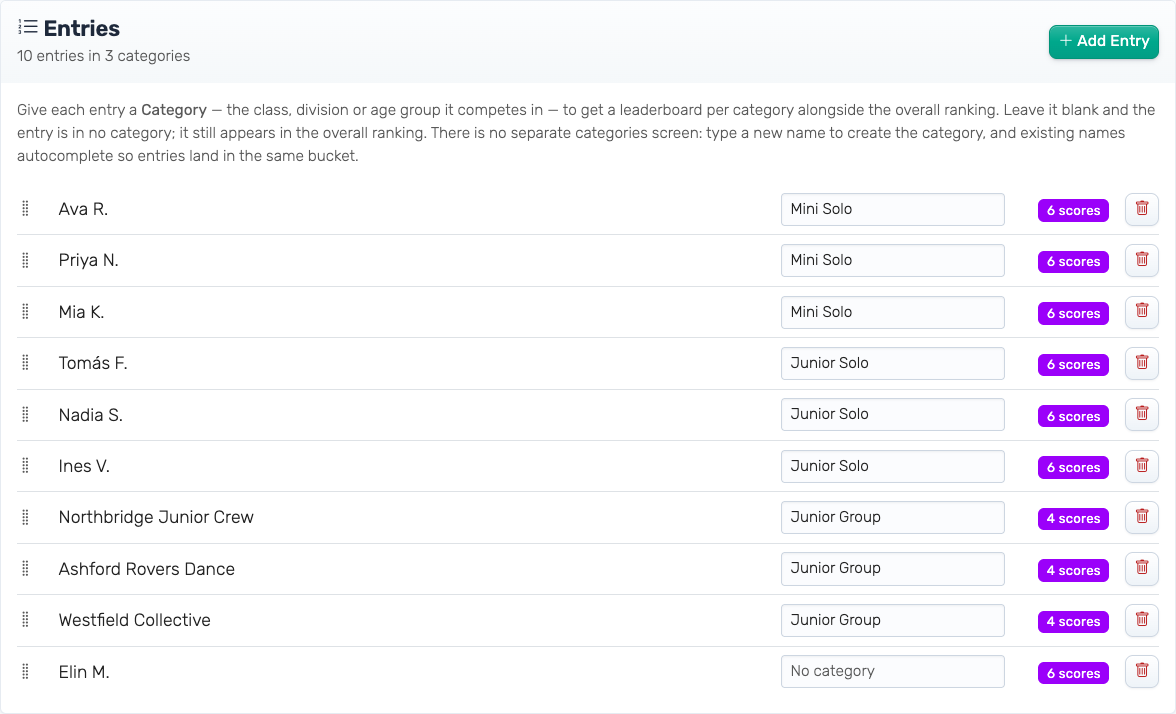
The setup wizard's Add Entries step has the same switch, as a Use categories link under the entry tabs, so you can start with categories rather than adding them later.
Turning them off never deletes anything
Use categories only decides whether the controls are drawn. It does not touch your entries. Results, exports and the public leaderboard all read each entry's own category, so a competition whose controls are hidden still shows its categories everywhere they appear.
That is also why the button disappears as soon as one entry has a category — at that point there is nothing left for it to hide. To retire categories, clear the Category box on every entry. Once none are left, the button comes back.
Naming a category
There is no separate categories screen and no list to set up in advance. Typing a name creates the category; names already in use autocomplete, so entries land in the same bucket rather than in near-identical ones.
Case and spacing are folded together for matching, so mini solo joins an existing Mini Solo rather than splitting the leaderboard in two. The first spelling you use is the one displayed.
Entries can stay in no category. They are labeled No category, they still appear in the overall ranking, and they get their own section at the bottom of the public leaderboard.
Adding entries in bulk
At 40 entries, typing categories one row at a time is slow. At 250 it is not worth doing at all.
The wizard's Bulk Paste tab takes a category after a comma — one entry per line:
Ava R., Mini Solo
Priya N., Mini Solo
Northbridge Junior Crew, Junior Group
Two columns pasted straight out of a spreadsheet work too — a tab between the name and the category is read the same way as a comma. Pasting entries that carry categories switches the controls on by itself, so you do not have to remember to press the button first.
A comma is also part of plenty of names (Smith, Ava, Angel Down, by Daniel Kraus). So if you have not switched categories on yet, the wizard asks before splitting at the comma: choose Yes, use as categories, or No, keep full names to add every line exactly as you pasted it. Spreadsheet columns are never ambiguous, so a tab-separated paste does not ask.
Only the first comma on a line is treated as the separator — Bronze Fastback Coupe, Vintage (pre-1970) splits correctly. If your names contain commas and you want categories, paste two spreadsheet columns instead.
Assigning judges
By default every judge scores every entry. To restrict one, open the pill under their name in the Editor's Judges card and either tick whole categories or hand-pick individual entries.
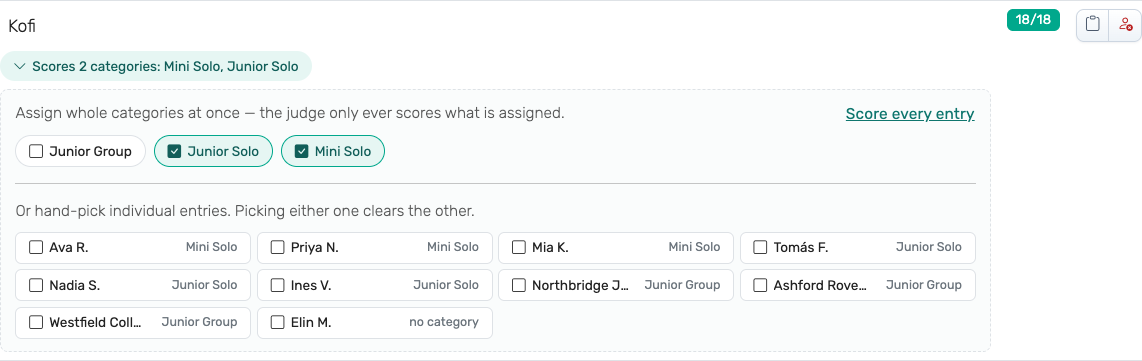
Hand-picking entries needs no categories at all. If you only want to split a long program between two judges, you can do that without ever giving an entry a category.
An assigned judge's scoring page, progress bar and completion state cover only what is assigned. Their page names the categories they were given, and a score submitted for anything else is refused. A judge assigned nothing sees a "Nothing to score yet" message rather than the full competition.
Judges follow their categories
A judge assigned a category scores whatever is in it, as the category changes. An entry you add to the category, or move into it, goes onto that judge's sheet straight away, with no need to save the judge again. An entry you move out leaves their sheet. A judge who already has their scoring page open sees the change when they reload it.
If a judge has already scored an entry you are about to move out of their categories, the editor asks first. Once the entry moves, that judge's scores stop counting. They are kept, and count again if you move the entry back.
Hand-picked entries stay exactly as picked: moving one to another category does not change who scores it.
If you move the last entry out of a category a judge is assigned, that category stays in their picker marked no entries left. Untick it, or leave it: the judge gets the category's entries again as soon as one moves back in.
Restricting a scoring criterion
By default every criterion applies to every category. To restrict one, open the pill under the criterion's name in the Editor's Scoring Criteria card and tick the categories it applies to. Every other category stops being scored on it.

An entry is scored — and totaled — only on the criteria that apply to its own category. A criterion a category does not face never appears on a judge's sheet for those entries, is not counted in their progress, and is left blank in exports.
Criteria are restricted to categories, not to judges
This is the part that most often catches people out. You cannot give one judge a different set of criteria from another. A judge sees whatever applies to the entries in front of them — so if a judge is not seeing the criterion you expect, check which categories that criterion is restricted to, not the judge's assignment.
An empty restriction means nothing, never everything
This is the one setting that can quietly ruin a live event, so it is worth stating plainly:
- A judge restricted to zero categories scores nothing.
- A criterion restricted to zero categories is scored by nobody.
Unticking the last category does not widen the restriction back out — it narrows it to nothing. The pill turns red and reads Nothing to score or Applies to no category when this happens.
To go back to unrestricted, use the explicit reset link in the picker: Score every entry for a judge, Apply to every category for a criterion.
Results
Once any entry has a category, a Categories button appears in the Scoring Results view toggle on your dashboard, next to Matrix and List.
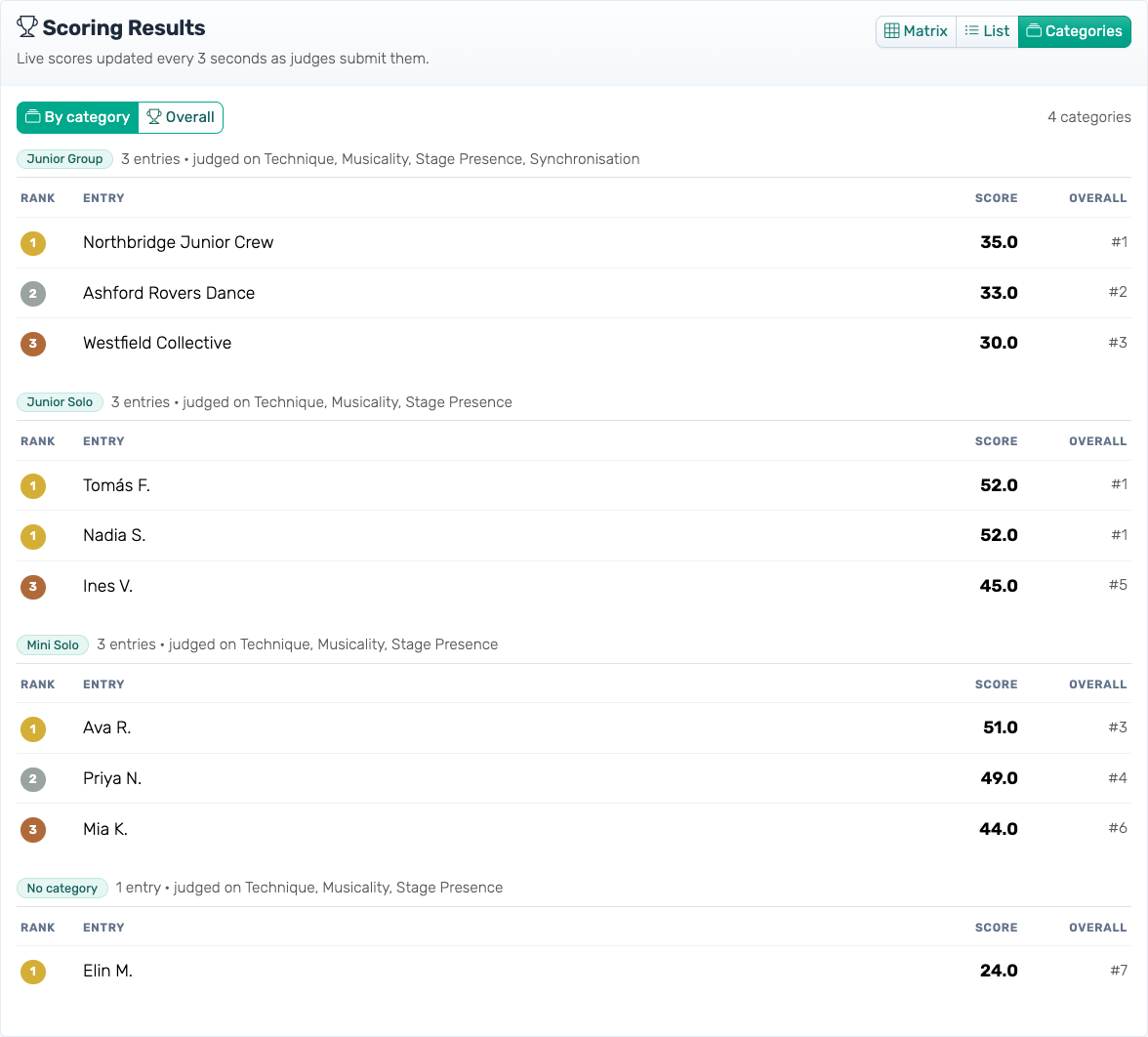
It has two views:
By category — one ranked leaderboard per category, in running order: each category sits where its first entry is in your entry list, so during an event the categories that have already performed come first. Each is headed with its entry count and the criteria those entries are judged on. Each row also carries its overall placing, so you can read both at once.
Overall — every entry in one ranking, with its category beside it.
Entries on the same score share a placing, in both views: two entries tied for first are both 1st, and the next entry is 3rd.
When Combining scores is set to Sum, a category whose entries were not all judged by the same number of judges gets a warning above its leaderboard: an entry with four judges' points is not on the same scale as one with two. An entry no judge is assigned to is flagged too, whatever the setting. The Finalize confirmation repeats these warnings, so you can fix the judging before you lock the results.
The Matrix view gains a Category column too, and a cell reads Not assigned where a judge was never given that entry — which is different from an assigned judge who has not scored it yet, and worth distinguishing when you are chasing people at the end of an event.
When Overall splits into more than one ranking
If two categories are judged on different criteria, their totals are out of different maximums and are not comparable. Ranking them against each other would produce a winner decided by which criteria they faced.
So ScoreJudge does not. Overall splits into one ranking per criteria combination in use, each labeled with what it adds or drops relative to the standard set. A competition where every category shares the same criteria — which is most of them — gets a single combined Overall, and the dashboard says so.
Restricting criteria one at a time can split Overall further than you intended: a criterion restricted to Solo and Duet and another restricted to Duet and Group puts all three in separate rankings. The Editor and the dashboard both warn you when more than one criteria set is in use, with the count and the labels.
What the audience sees
The public leaderboard splits into one section per category, in the same running order as the dashboard (alphabetical when it is set to show entries only), with No category last. Each section is headed with its name and entry count, and each entry shows its placing within its own section.
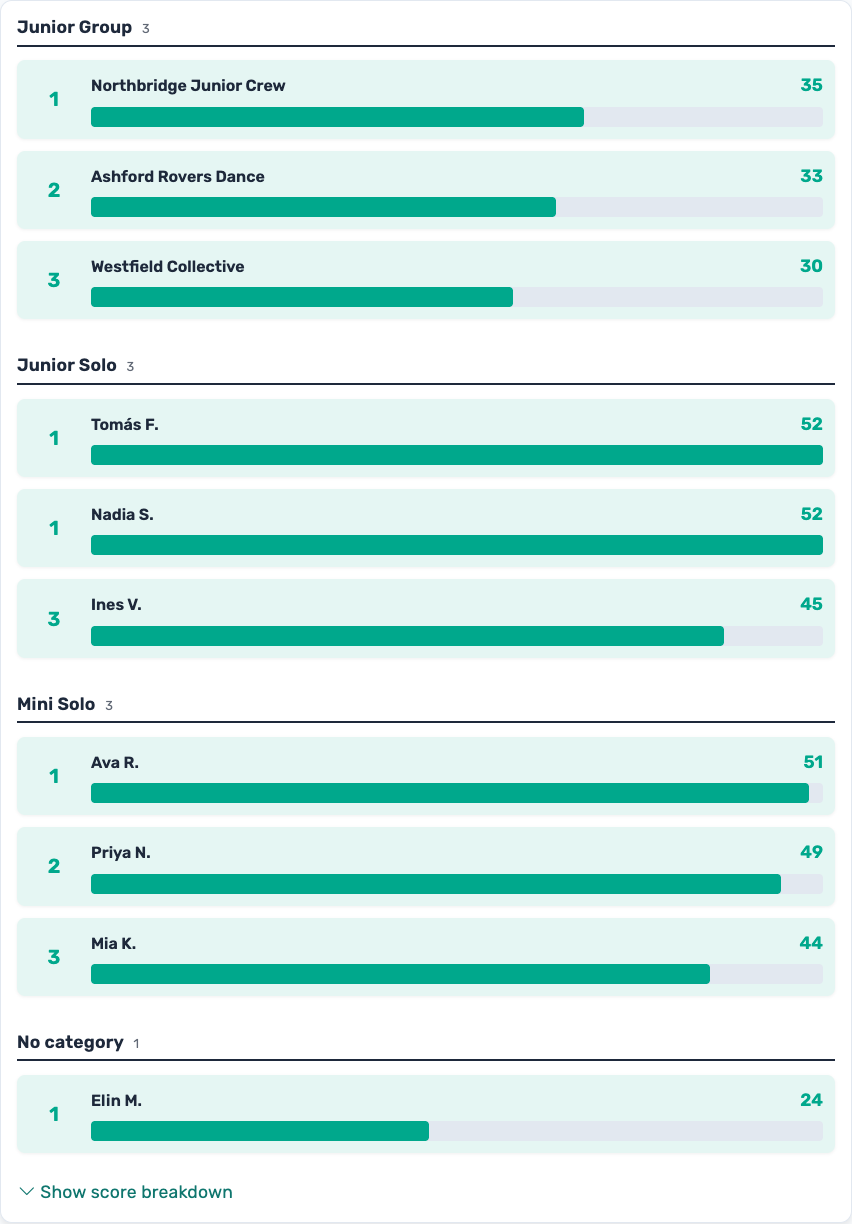
Show score breakdown splits the same way — one table per section, each showing only the criteria those entries were actually judged on. A solos section does not carry a column of dashes for a criterion only group routines are scored on.
The breakdown button appears in panel competitions with more than one criterion, when the public leaderboard is set to show live scores.
Exports
Both the CSV and the PDF export from the dashboard are category-aware, and only when at least one entry has a category — a competition without them exports exactly as it always did.
The CSV gains Category and Category Rank columns at the front, and the existing Rank column becomes Overall Rank, so both placings are there:
Category,Category Rank,Overall Rank,Entry Name,Total Score,…
Junior Group,1,1,Northbridge Junior Crew,35.0,…
Junior Group,2,2,Ashford Rovers Dance,33.0,…
Rows are ordered by category, then by placing within it, with the uncategorized entries last. A criterion a category is not judged on is left blank rather than zero.
When more than one criteria set is in use, a Criteria Set column appears too, using the same labels as the dashboard's Overall rankings, so the two can be reconciled.
The PDF export starts a new page per category, headed with the category name.
Common Questions
Can we announce a category's results before the competition ends?
Yes, and nothing needs configuring. Scores count as judges enter them, so a category's placings are readable mid-event with nothing marked complete and nothing finalized — open the Categories view on your dashboard and read off the section you are about to announce.
Marking a judge complete only closes that judge's own sheet, and you can reopen it from the Judges list with Reset Completion. Finalizing locks the whole competition and is the thing to leave until the end.
Do categories work with audience voting?
Partly. Entries keep their categories, the public leaderboard splits into sections, the exports carry the Category column, and a criterion restricted to some categories is enforced for audience voters exactly as it is for judges — a voter is only asked for the criteria that apply to the entry in front of them.
What audience competitions do not have is judge assignments, since there are no named judges to assign, or the dashboard's Categories results view, which lives in the panel-only view toggle.
Can an entry be in two categories at once?
No — an entry has one category or none. If you need two axes, for example age and item type, combine them into one label ("Junior Solo", "Senior Solo") for now.
How many categories can we have?
There is no limit, and no setup step — a category exists because an entry names it. Long programs with dozens of categories work; the autocomplete and the pickers list them alphabetically.
Does changing an entry's category affect its scores?
No. Scores already submitted stay exactly as they are. The entry moves to the new category's leaderboard, and its total is recalculated against that category's criteria if the two categories are judged on different ones.
Who judges it changes with the category, though: judges assigned the old category lose it and their scores stop counting, and judges assigned the new one get it. See Judges follow their categories above.
Why can I not give one judge a different set of criteria?
Because criteria are restricted to categories, not to judges. Two judges scoring the same entry always score it on the same things — which is what makes their scores comparable. To vary the criteria, restrict them to different categories and put the entries in those categories.