Public Leaderboard: What Your Audience Sees
The live results page for the big screen, phones and your website — visibility modes, the voting QR code, appearance and embedding.
Every competition has a public leaderboard: a page anyone with the link can open, without an account. Put it on the big screen at the venue, share it with spectators, or embed it on your website. It updates on its own every few seconds as scores and votes come in.
You find the link, and everything that controls the page, in the Public View card on your dashboard.
What's on It
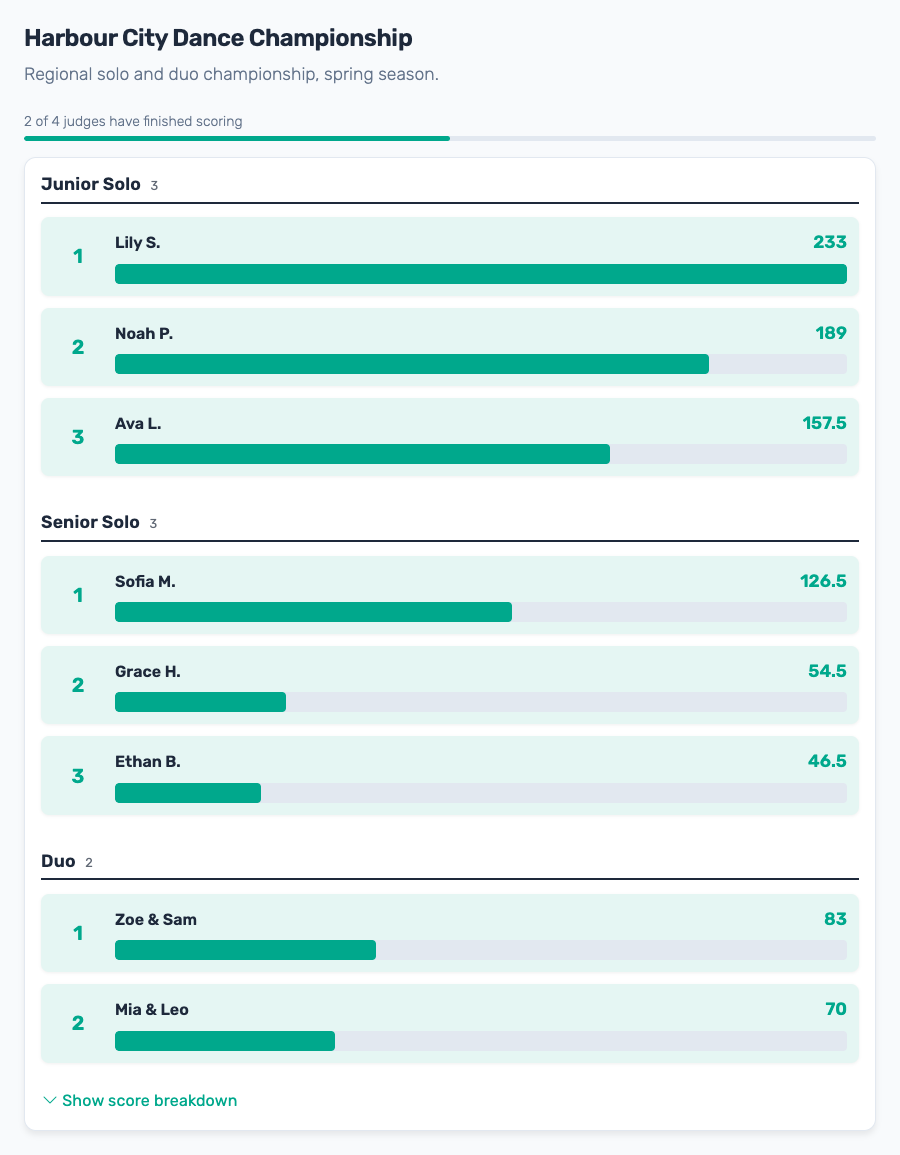
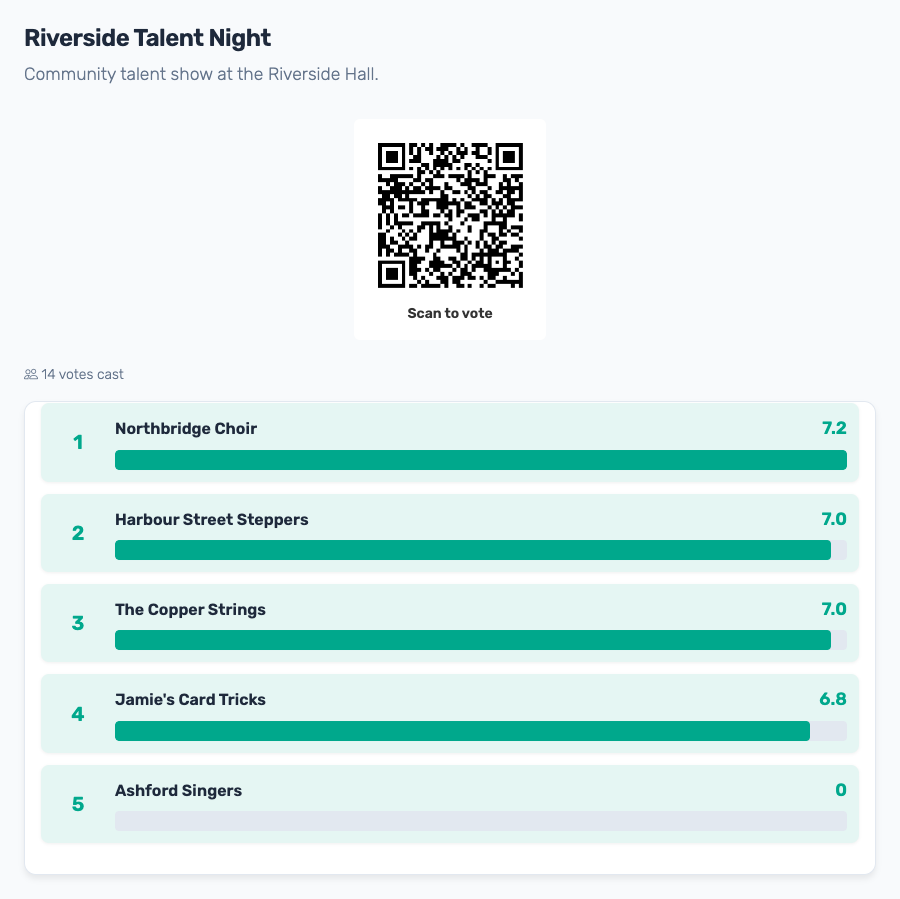
- The ranking, with each entry's score and a bar showing how it compares to the leader. Panel and Audience Scoring competitions show scores; Ranking and Favorite competitions show points.
- One ranking per category, if your entries have categories.
- Show score breakdown, a link under the ranking that reveals each entry's score per criterion.
- Judging progress in panel competitions, e.g. "2 of 4 judges have finished scoring". You can hide it (see Appearance).
- A "Scan to vote" QR code in audience competitions, so people in the room can vote straight from the screen. You can hide that too.
- Vote or ballot count in audience competitions, e.g. "14 votes cast".
Judges' names, individual judges' scores and judge notes never appear on the public page.
Visibility: Live, Hidden or Entries Only
The Visibility mode dropdown in the Public View card decides what spectators see. You can switch at any time, and the page follows within a few seconds — no reload needed on the big screen.
| Mode | Spectators see | Use it for |
|---|---|---|
| Live scores | The full ranking with scores, updating live | Most events |
| Entries only | The entry names, no scores or ranks; in audience competitions, still the voting QR code | Showing the line-up while voting is open, without a runaway leader swaying later voters |
| Hidden | A "Results Coming Soon" card — no names, no scores, no QR code | Building up to a reveal |
Scores keep counting on your dashboard whichever mode you choose. When you're ready for the reveal, switch to Live scores.
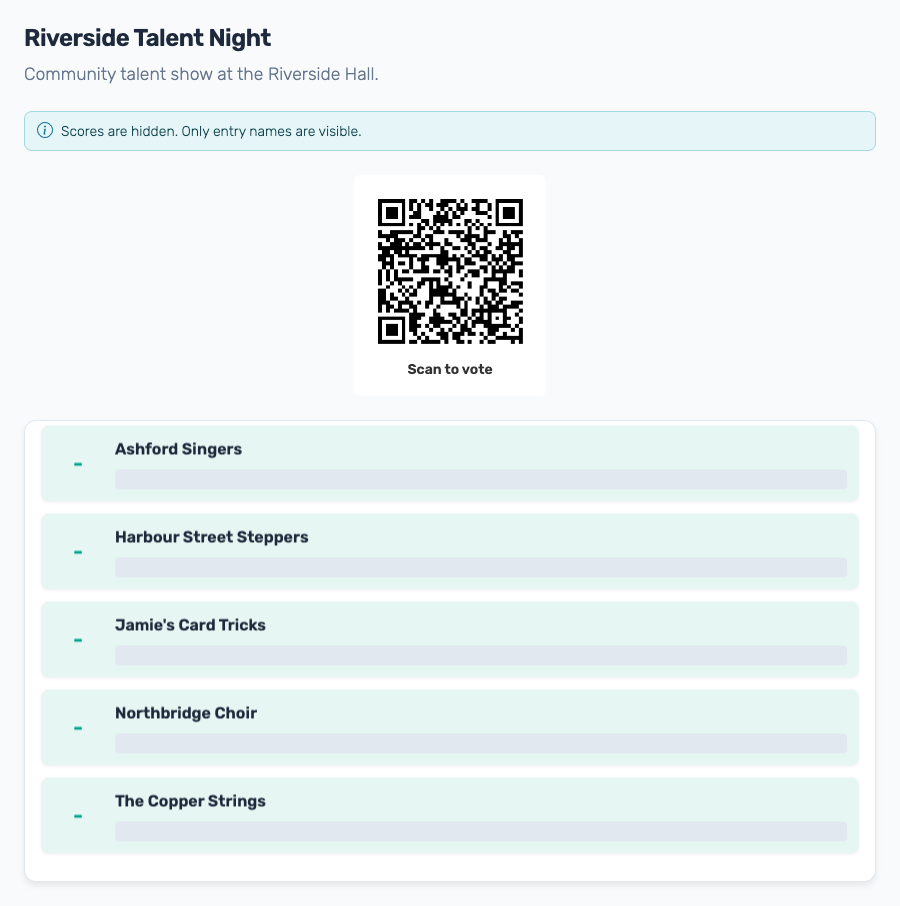
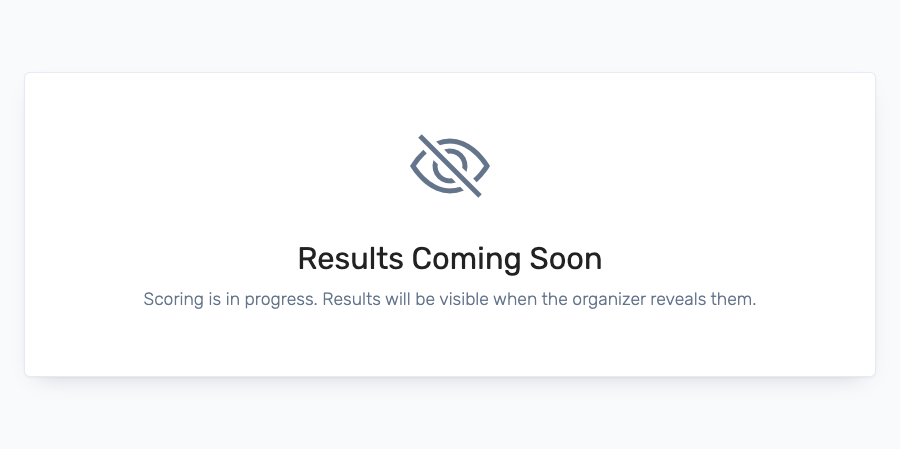
Running an audience vote from the big screen? Use Entries only rather than Hidden while voting is open. Hidden removes the QR code along with the scores, so people can no longer scan it from the screen.
On the Big Screen
Open the public leaderboard on the laptop connected to the projector or TV and press F11 (or Ctrl+Cmd+F on a Mac) for fullscreen. The page refreshes itself; leave it running for the whole event. If the venue's internet is unreliable, a phone hotspot for the display laptop is a good backup.
For a bigger room, raise the Font size under Appearance.
Appearance
Click Customise in the Public View card. Changes apply to the public page straight away.
- Theme: Default, Dark, Bold, Gaming or Contest
- Accent color: your own colour for highlights and bars
- Layout: Bar (score bars, as in the screenshots above) or List
- Font size: 75 % to 200 %
- Voting QR Code (audience competitions): show or hide the "Scan to vote" code
- Judge Progress Indicator (panel competitions): show or hide the judging progress line
Sharing and Embedding
In the Public View card:
- Copy Link copies the leaderboard's address, to post in a chat or newsletter or turn into your own QR code.
- Preview opens the page as spectators see it.
- Embed gives you a snippet of HTML to paste into your website, blog or streaming overlay. The embedded leaderboard updates live, just like the page itself.
"Powered by ScoreJudge"
The public leaderboard has a small Powered by ScoreJudge line at the bottom, on every plan. It links to scorejudge.com and can't be removed.
After the Event
The public leaderboard stays online after you finalize the competition, showing the final results. Keep sharing the link, or set the visibility to Hidden if you'd rather take the results down.