Scoring as a Judge: How to Use Your ScoreJudge Link
A short guide for judges — open your link, enter scores, move between entries, write notes, and tell the organizer you're done.
You've been asked to judge a competition on ScoreJudge. This page explains everything you'll see. It takes about three minutes to read, and there is nothing to install.
Organizers: send this page to your judges along with their links. The Share message on your dashboard already includes it.
Opening Your Link
The organizer sends you a personal link, usually by email or message. Open it on a phone, tablet or laptop — any modern browser works, and you don't need an account or an app.
- The link is yours alone. Anyone who has it can score as you, so don't forward it.
- Bookmark it. You can close the page and come back any time; your scores are still there.
- Lost it? Ask the organizer. They can send it again, or give you a new one.
At the top you'll see your name, the competition, and a progress bar counting how many entries you've scored.
Entering Scores
Each entry has one field per scoring criterion. Type a number and move on — scores save automatically as you type. There is no save button and nothing to submit per entry.
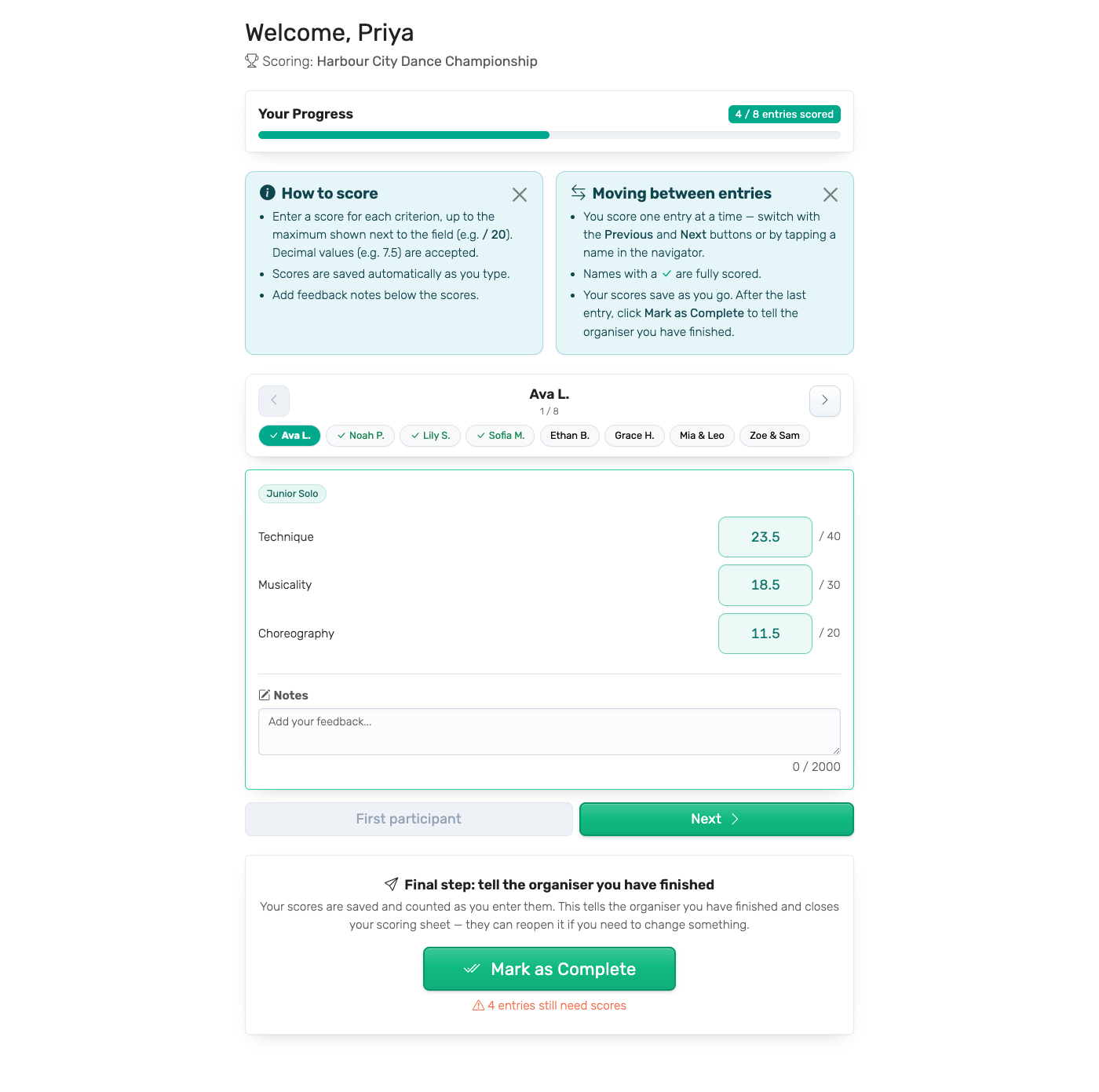
- The allowed range is shown next to each field: either the same scale for every criterion (e.g. 1–10), or a maximum per criterion (e.g. / 40 for Technique, / 20 for Choreography).
- Decimals are fine — 7.5 or 7,5, whichever your keyboard gives you.
- A score outside the range isn't saved. The field says "Score must be between 1 and 10" (with your competition's numbers) until you fix it.
- You can change any score until you mark your scoring as complete.
The two blue help cards at the top repeat the essentials. Close them with the ✕ once you've read them; they stay closed on that device.
Moving Between Entries
How the page is laid out depends on the size of the competition.
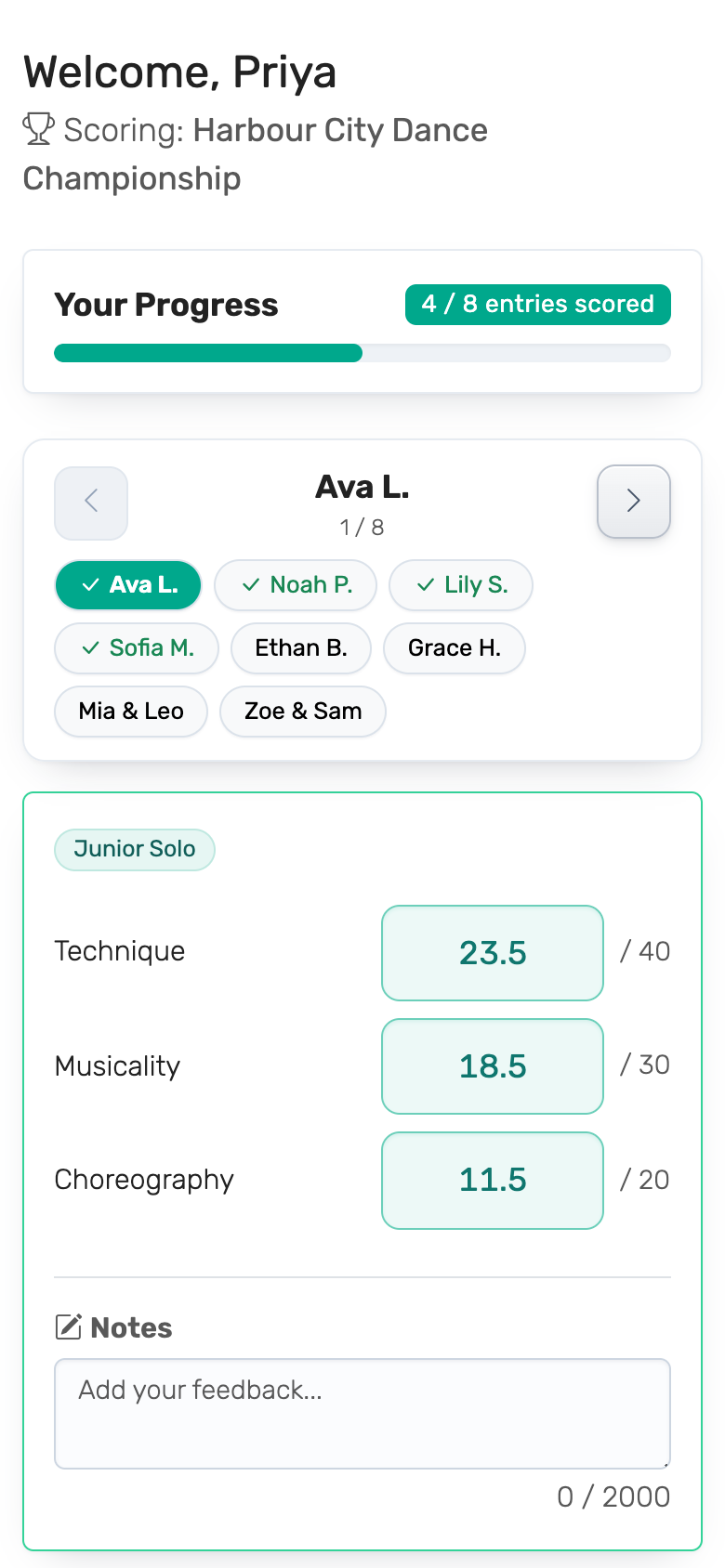
Larger competitions: one entry at a time. From three entries upwards (and enough criteria to make the page long), you see one entry at a time. Use Previous and Next, or tap a name in the navigator at the top. Names with a ✓ are fully scored, so you can see at a glance what's left. The navigator stays at the top of the screen while you scroll. With more than eight entries the name buttons are hidden and you move with Previous and Next.
Small competitions: everything on one page. With only a couple of entries, every entry is listed on one page. Scroll down and fill them in.
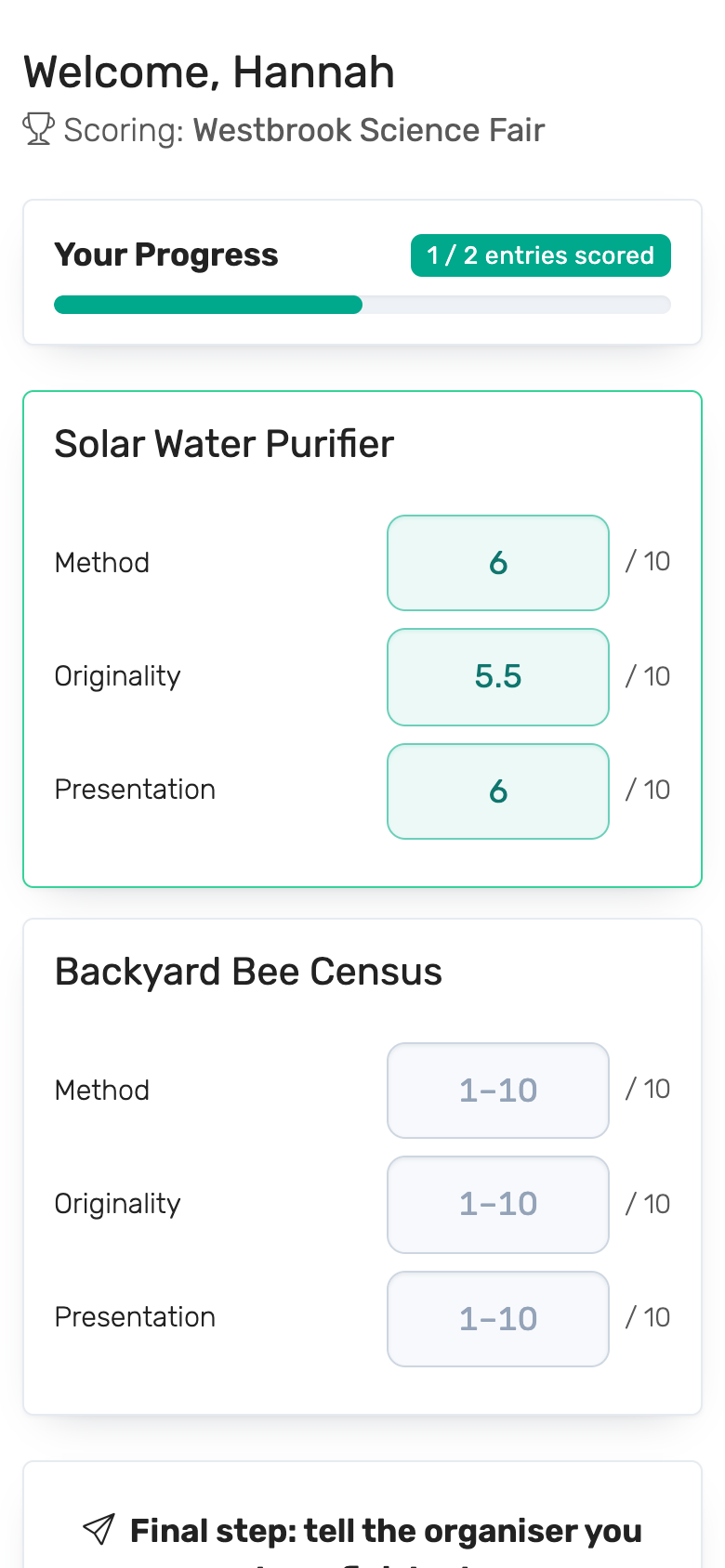
You can score entries in any order.
Only Some Entries?
The organizer may give you only part of the competition — a category such as "Junior Solo", or a handful of entries. You then see only those, and a line under your name says so, for example "You are scoring 3 of 8 entries — Junior Solo". Your progress bar counts only your entries.
If you see "Nothing to score yet", nothing has been assigned to you. Let the organizer know.
Writing Notes
If the organizer has turned on judge notes, each entry has a Notes box under the scores. Use it for feedback to the competitor or a reminder for the organizer.
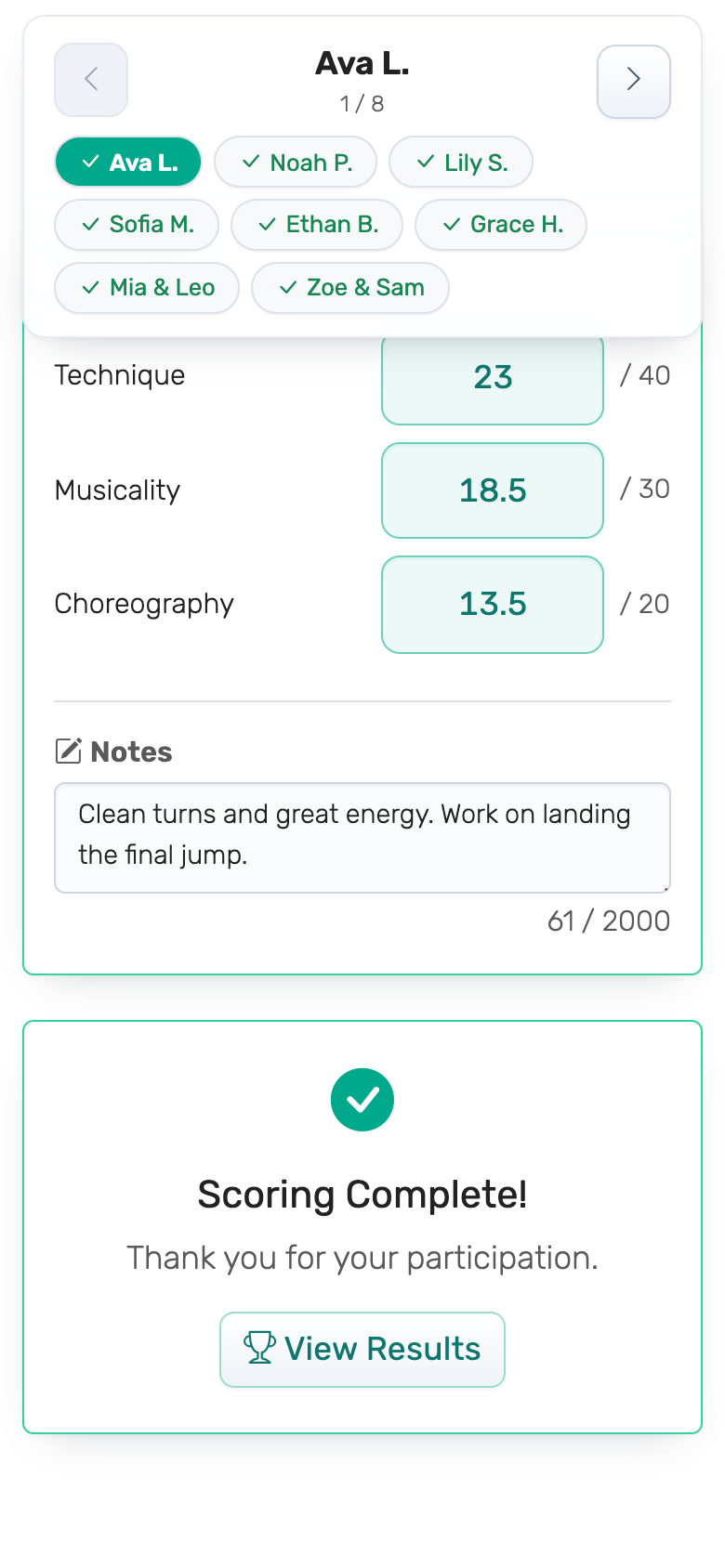
- Notes save automatically, like scores, and can be up to 2,000 characters.
- Only the organizer reads them. They never appear on the public leaderboard, and other judges can't see them.
- If notes are required, you can't mark your scoring as complete until every entry you scored has one.
More detail for organizers: Judge Notes.
Marking Your Scoring as Complete
When you've scored everything, click Mark as Complete at the bottom of the page. This:
- tells the organizer you've finished — they see it on their dashboard;
- closes your scoring sheet, so nothing changes by accident.
Your scores already counted the moment you entered them; marking complete doesn't submit anything new. If you've left entries unscored, ScoreJudge lists them and asks you to confirm first.
Need to change a score afterwards? Ask the organizer to reopen your sheet. Once the organizer finalizes the competition, scoring is closed for everyone and your page says Competition Finalized.
If Something Goes Wrong
| What you see | What it means | What to do |
|---|---|---|
| Connection issue detected | Your internet dropped. | Keep the page open. If a score is outlined in red once you're back online, enter it again. Don't reload the page: that loses scores that haven't saved. |
| Invalid or Expired Link | The link is wrong or was replaced. | Check it wasn't cut off when copying, or ask the organizer for a new link. |
| Nothing to score yet | No entries are assigned to you. | Ask the organizer to assign you a category or entries. |
| Competition Finalized | Scoring is closed. | Nothing — the results are final. |
| Score must be between … | The number is outside the allowed range. | Enter a number within the range shown next to the field. |
Using a shared venue Wi-Fi or an old device? See Technical requirements.
For Organizers
- Send this page with each judge's link. The Share button in the dashboard's Judge Management card writes a ready-to-send message that already links here.
- See what your judges see before the event: the eye button next to each judge opens their scoring page. Scores you enter there count, so clear them afterwards — see Getting Started → Test Before the Event.
- Reopen a judge's sheet with the reset button next to their name in Judge Management.